EVERYTHING ABOUT THE VLOOKUP FORMULA

The VLOOKUP Function

Hello everybody,

As you can understand from the title, this article will be pretty long.
If you want to become an expert in the VLOOKUP formula, you can read this article till the end and apply it.

It is a function that everybody has heard of, everybody wants to learn and that everybody uses in Excel. We use the VLOOKUP function to find a value in the table.
Let’s explain it a bit: we use the VLOOKUP function when we search a data in a table or data range and want to get data from a column that corresponds to that data. For example: let’s assume that you have a personnel salary table. In one cell there is the personnel name, you can search your employee’s name and find out the salary they get easily.

SYNTAX

VLOOKUP (lookup_value, table_array, col_index_num, [range_lookup])

To express how the VLOOKUP function works simply:

=VLOOKUP (look for this; look in this table; if you find it bring me the one in the 2nd column; [TRUE – Approximate Match / FALSE – Exact Match])

Now let’s take a look at the arguments this function wants from us.

Argument name Description
lookup_value    (required) The value you want to look up. The value you want to look up must be in the first column of the range of cells you specify in the table_array argument.

For example, if table-array spans cells B2:D7, then your lookup_value must be in column B.

Lookup_value can be a value or a reference to a cell.

table_array    (required) The range of cells in which the VLOOKUP will search for the lookup_value and the return value. You can use a named range or a table, and you can use names in the argument instead of cell references.

The first column in the cell range must contain the lookup_value. The cell range also needs to include the return value you want to find.

Learn how to select ranges in a worksheet.

col_index_num    (required) The column number (starting with 1 for the left-most column of table_array) that contains the return value.
range_lookup   (optional) A logical value that specifies whether you want VLOOKUP to find an approximate or an exact match:

  • Approximate match – 1/TRUE assumes the first column in the table is sorted either numerically or alphabetically, and will then search for the closest value. This is the default method if you don’t specify one. For example, =VLOOKUP(90,A1:B100,2,TRUE).

  • Exact match – 0/FALSE searches for the exact value in the first column. For example, =VLOOKUP(“Smith”,A1:B100,2,FALSE).

Working Conditions

  • When the required arguments are not entered, the function doesn’t work.
  • If the range_lookup optional argument is not entered, TRUE- Approximate match is considered as default.
  • The lookup_value always has to be on the far left (in first column) of the selected/indicated table array. But this situation can be overcome by writing different functions in VLOOKUP. (We will see this below.)
  • If the lookup_value is not found on the left of the table_array, #N/A error is returned.
  • If there is a multiple number of the data written into the lookup_value argument in the range indicated in the table_array argument, this function returns the record of the first data it found
  • it is not checked if the text written into the lookup_value argument is with uppercase or lowercase.
  • when a numeric data is written into the lookup_value argument, if the data type stated as table_array in the first column is text, #N/A error is returned. the same condition is valid in the opposite condition.
  • if a smaller number than 1 or a bigger number than the column number in the indicated table range or a text is written into the col_index_num  argument, #VALUE! error is returned.
  • when a column is deleted from the field stated as table_array, #REF! error is returned.
  • 1 and 0 can be written instead of TRUE and FALSE in the range_lookup argument.
  • If TRUE – Approximate Match is chosen, the table assumes that the first column will be sorted by number or alphabetically and looks for the most approximate value on the base. If you don’t specify a method, this method is used as default.
  • If FALSE- Exact Match is chose, if there is a value that is exactly the same with the data you have stated in the lookup-value argument is look for in the first column of the table_range.


THE BASIC USE OF THE VLOOKUP FUNCTION

You see a search sample suitable with the basic language and working conditions of the VLOOKUP function in the image below.
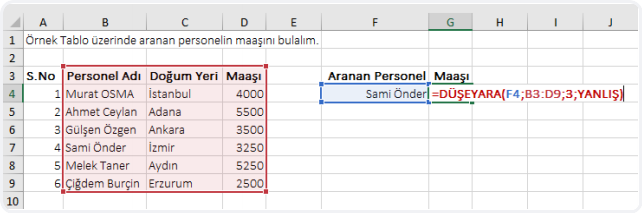
We have said that if you find the name Sami Önder in the B column which is the first column in the B3:D9 cell range , bring the data in the 3rd column of the selected range.

We have mentioned that we can write 0 instead of FALSE. With this FALSE expression, it i checked if there is an exact Sami Önder in the B column.


USING WILDCARD CHARACTERS

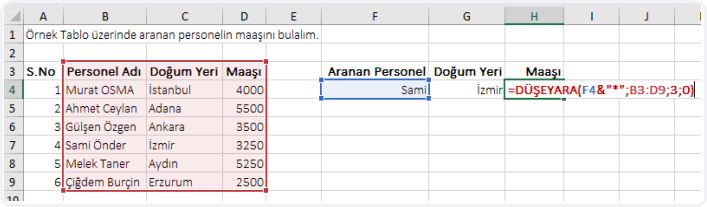
We can get the same result without having to write the full name we are looking for on the same table by using a wildcard character after writing the name only. Let’s brush up on the Wildcard Characters that we can use in Excel.

We have 3 different Wildcard characters.

Use

To find
? (question mark) Any single character
For example, sm?th finds “smith” and “smyth”
* (asterisk) Any number of characters
For example, *east finds “Northeast” and “Southeast”
~ (tilde) followed by ?, *, or ~

A question mark, asterisk, or tilde
For example, fy06~? finds “fy06?”


The asterisk and question mark act as complementary character when it is in the beginning or end of a text in the lookup_value argument of the VLOOKUP function.
And ~ only limits the other wildcard characters by preceding them.

If the wildcard character precedes the text, it implies that the text ends with that. For example: *ali (if it ends with ali)
If the wildcard character is at the end of the text, it implies that the text starts with the. For example: ali* (If it starts with ali)
If the wildcard character is both in the beginning and at the end of the text, it implies that the texts contains that. For example: *ali* (if the text contains the word ali)
here is an example for the question mark: when you write ?ali, it means that there is a character (text, numbers or symbols) before the word ali.
You can analyze this image as an example of the situation I have mentioned. ‘=F4&”*”
 

METHODS OF GETTING DATA FROM MULTIPLE COLUMNS

All Functions in Excel -except for the recently added dynamic array functions- return only one result.
When we get a result with the VLOOKUP formula, we might want to get the other data in the table by dragging the formula right.
Instead of writing the formula over and over again for each column, we can get data from the others column in the field we have stated as table_array when we drag the cell we have written the formula in right after adding a function to the col_index_num  function that would change it as dynamic.
We can execute this action with a few methods. Now, let’s analyze these methods.

Our first method..

Let’s assume that we have a table like the one here.
We will get the data in the I.D. Number and Salary fields when we write the Name of the Personnel and drag it right.
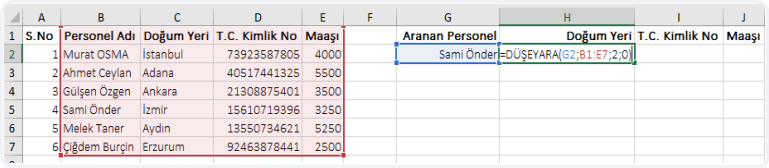
 

We will have to write our formula correctly to execute an action like that.
And by correctly I mean using the cell styles correctly.
Which mean will we pin the cells while selecting the cell or cell range or not, or are we going to pin the row or column only?
As an answer to these questions, we have to write the $ (dollar) symbols in the direction it is supposed to be when we select the cell.
And then we will have to use a function that would allow us the make the col_index_num  part dynamic.

Well, let’s start.

While selecting a cell in the formula, we have to think about the pinning issue we have mentioned.
Since the place of the cell in which we write the Name of the Personnel is stable, we press F4 and pin it.
And since the place of the cell range we selected for the table_array argument, we press F4 again and pin that cell range as well.
And our formula will look like this as you can see in the image.
=DÜŞEYARA($G$2;$B$1:$E$7;2;0)
DÜŞEYARA is the Turkish word for VLOOKUP. So in English it would be:
=VLOOKUP($G$2;$B$1:$E$7;2;0)
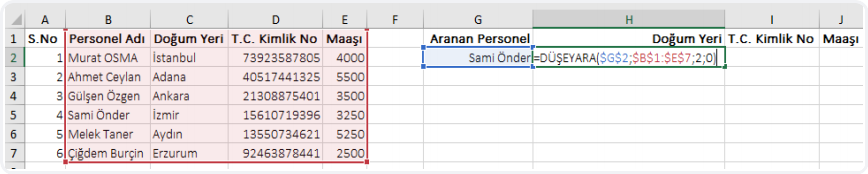
And when we drag our formula right, since we wrote 2 manually to the col_index_num argument, that part will always stay as 2.
Our aim here is to change the col_index_num argument by increasing 2,3,4 when we drag the formula right and to get the data in those columns.
Right at this moment comes the COLUMN function to our help.


What is the COLUMN function? How is it used?

The COLUMN function returns the column number of the given cell reference.
It is used in two ways.

When it is written as =COLUMN(), gives the number of the column of the cell in which it is written.
When it is written as =COLUMN(reference address)  gives the number of the column of the cell stated as the reference address.

If you write the =COLUMN() formula into the E10 cell, since the E column is the 5th column in Excel, the formula will return the number 5.
Likewise, if you write the =COLUMN(B1) formula into the E10 cell, since the B column is the 2nd column in Excel, the formula will return the number 2.
Since we didn’t pin anything in the B1 cell address, when we drag the formula right it will change as C1, D1, E1. And this allows us to get the numbers 2,3,4,5.
Thanks to this, we will be able to get the data from the other columns in the table_array range.

You can see the sample formula below for the situation we want.


Our second method…

We will not use an auxiliary function in this method, but since the argument that will change will be col_index_num, we will try to get a result with the array in that part.
Which means that we will write the column index numbers we want to get as {2;3;4} and make it an array formula and make each one of these numbers transmitted to each column.

Here is how we’ll do it:

  • Edit the formula in the H2 cell like in the image.
  • Choose the field we will transmit the result of the formula to. (H2:J2)
  • Press F2 and get into the cell.
  • Press Ctrl + Shift + Enter and complete the formula entry.
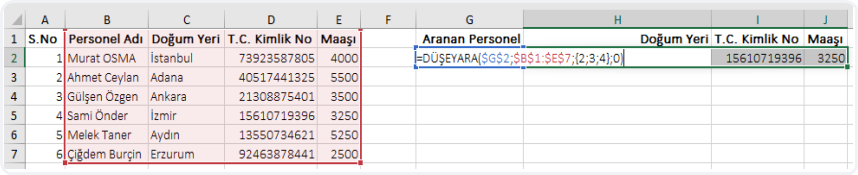
Being able to write the col_index_num we want into the col_index_num argument within {…..} curly braces will allow us to get the data in the columns we want and grant us with flexibility.


VLOOKUP FROM THE RIGHT 

As you know, look ups are done from left to right all the time in Excel. Look ups can be from left to right in columns are in characters of a text.
And many functions have been created and released with the same logic. The VLOOKUP function is one of these functions.

As we have mentioned in the Working Conditions above, the lookup_value always has to be in the first column of the table_array in the VLOOKUP function. If it is not found, the formula returns the #N/A error.
By the way, this is not an “error” like we think it is, it is just a warning meaning that the looked up value does not exist in the table.
Getting an error when the data we look up is not in the first column of the range we have stated is a code related result of the VLOOKUP function.

Let’s have an example of this situation if you please.
If the cell range chosen for the table_array argument starts from the A column while looking for the personnel named Murat OSMA, an error will be returned since there will not be a personnel name in the first column of the field we have selected. This is completely normal.
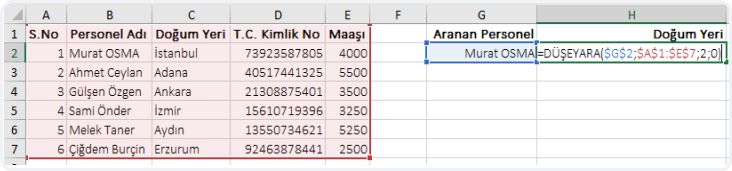
We can arrange this working style of the VLOOKUP function that causes us to get an error the way we want.
There are a few different methods for this too, but I will try to explain the easy one for you.

We have a function named CHOOSE.
This function requires an index_num and selecting arrays, i.e. data clusters.
The formula written in the image below is: =ELEMAN(1;C1:C7;B1:B7)  [ELEMAN is the Turkish version of the CHOOSE function. Thus, in English it would be: =CHOOSE(1;C1:C7;B1:B7)]
We have written 1 as the index_num in the formula, and then chose each data range (arrays); first the  C1:C7 range and then the B1:B7 range.
Since we wrote 1 into the index_num and choose the C1:C7 data range as the 1st data range, this formula will return the data in the C1:C7 range.
If we had written 2 into the index_num, it would have returned the data in the B1:B7 range.
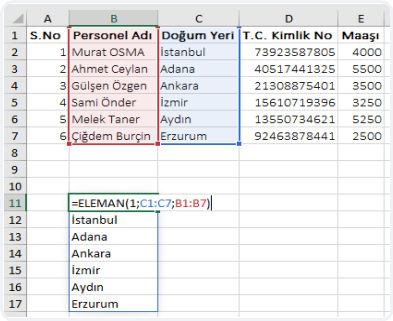
We get the data in the column we want when we state these index_num and arrays.
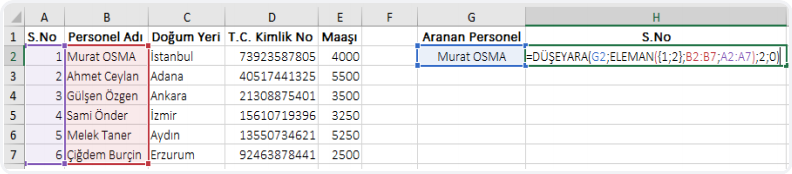
You see the formula you can use to prevent errors and get the data you want.
We state in which range the result should be by writing it in col_index_num within { … } in the index_num argument
by using the CHOOSE function in the table_array argument in the VLOOKUP function.
This way, if you write 1 into the col_index_numyou will get the result in the B2:B7 range and if you write 2, you will get the result in the A2:A7 range.
 

USING THE RANGE_LOOK UP ARGUMENT [TRUE – APPROXIMATE MATCH] (1)

We usually use the VLOOKUP function to get the data that matches exactly with the value we are looking for.
And 95% of the people who use this argument use the [range_lookup] argument as FALSE – Exact Match, i.e. 0.
So, what is this TRUE – Approximate Match?

When you look at the argument, it explains as:“the data in the first column of the table_array should be listed in an ascending order.”
So, when the [range_lookup] value is chosen as TRUE, sort the first column of the table_array before using the VLOOKUP.
If you don’t sort it, it is pretty likely to get the wrong data unless in an exceptional situation.
If the data in the table_array field is not sorted, if even if there is one that exactly matches, the #N/A error is returned.

When should you use TRUE – Approximate Match?

  • If the data in the table_array field is sorted, we can use the TRUE – Approximate Match.
  • If we are looking for a Numeric data and there is a number that matches with it, or there is no number that matches with it we can use it to bring the closest number to it.

Now, let’s have an example of this situation.
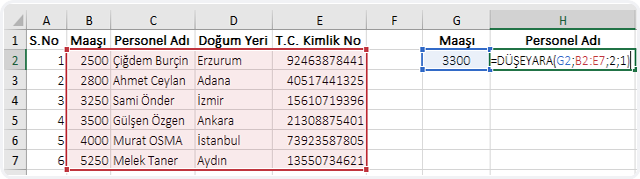
What we want to do in the formula written in the image below:
We want to find the Name of the Personnel of the Salary that is in the base of the number 3300 or numbers close to it.
For this action to give the correct result, keep in mind that the data in the first column of the table_array argument should be sorted.
The formula we write will give use the result of the name of the Personnel with the Salary of 3250 -since there is no one with the Salary of 3300 and this is the closest one-, so the name of Sami Önder.
 

VLOOKUP BY TWO OR MORE CRITERIA

We have used the VLOOKUP function to find a data in the table and then get the data  from the column we wanted so far.
If we want, we can also get a result depending on multiple criteria.

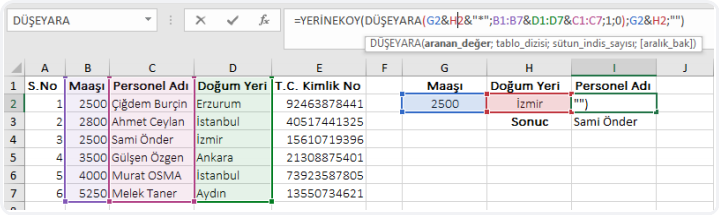
We have stated in the image below that we want to get this: Get the Name of The Personnel whose salary is 2500 and whose Place of Birth is İzmir.
And we used this formula for this:
=SUBSTITUTE(VLOOKUP(G2&H2&”*”;B1:B7&D1:D7&C1:C7;1;0);G2&H2;””)
We have used this technique here: We joined the Salary(Maaş in Turkish as you see in the image) and Place of Birth(Doğum Yeri in Turkish) in the lookup_value argument (G2&H2) and added &”*”  at the end, and thus got to state that our conditions start with these.
And we have joined the ranges of Salary, Place of Birth and the Name of Personnel that we want to get as a result in the table_array argument.
Since we have joined the ranges we wanted to get and we were looking for with in a single field, we have written 1 in the col_index_num argument.
We have written 0 for Exact Match in the range_lookup argument.
As a result, it returns us the 2500İzmirSami Önder text.
Lastly, when we say leave the data we write in the lookup_value argument blank in the text returned from the SUBSTITUTE function,
here will be the Personnel Name left Only.
This way, we got to find the data we were looking for by multiple criteria.
 

WHAT YOU SHOULD DO WHEN THE DATA TYPE YOU ARE LOOKING FOR AND THE DATA TYPE YOU FIND IS DIFFERENT?

Sometime even though a data should be numeric, it is determined as text because of the call style.
In this case, you might have realized that Excel warn you with green triangles and yellow warning symbol on the top left of these cells.
When you click that warning symbol, you will see the Number Stored as Text expression.
This explanation tells us that the data in the cell is a number but since the cell style is text, I store this number you have written as a text.

If the data type in the cell stated as lookup_value is a text,
the data type of the first column of the cell range we have stated as table_array must be text as well.
Or you can think of the opposite situation. To sum up: the types of the looked up and found data should be the same.
If they are not the same, the #N/A error is returned.
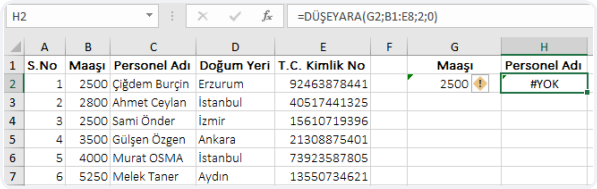
You can see the example about this in the image below. The formula used is:
=VLOOKUP(G2;B1:E7;2;0)
Since the data type of lookup_value is text, and the data in the first column of the table_array is numbers, there is no match and the #N/A error is returned.
So, how do we solve this? It is very simple!

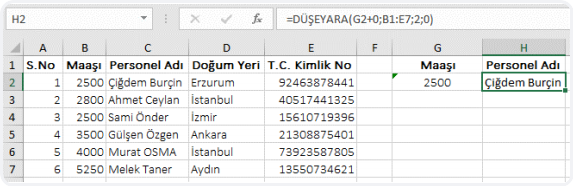
We can solve this problem by applying a mathematical operation that would turn the text stated as the lookup_value into a number.
The mathematical operation to be applied shouldn’t affect the existing number.
For example, if we use any mathematical operation like +0, *1, /1, ^1 or — (plus 1, multiply by 1, divide by 1, exponent 1, hyphen hyphen), we will get the result you can see below.
The formula used: =VLOOKUP(G2+0;B1:E7;2;0)
 

USE VLOOKUP INSTEAD OF WRITING NESTED IFS

In some of our tables, for example when we want to calculate annual leave, we can write many nested IF function and find the solution that way.
But the VLOOKUP gives us the solution to solve this calculation faster and easier.
Now, let’s make the same calculation with nested IFs and then with VLOOKUP. You will see the difference.

Let’s assume that we have a table like the one below. We will determine different rations depending on the different processes. If we want to do it with nested If functions, we will have to write the formula long like this:

=IF(C2=”CV Search”;10%;IF(C2=”Bizde Mülakat Aşamasında”;20%;
IF(C2=”Aday Paylaşıldı”;40%;IF(C2=”Müşteride 1.Mülakatta”;50%;
IF(C2=”Müşteride 2. Mülakatta”;70%;IF(C2=”Müşteri Assessment Aşamasında”;80%))))))

We have shared this with the Turkish sentences so that you can see the cells in the table. However, the formula would be like this with the English translation of these sentences:
=IF(C2=”CV Search”;10%;IF(C2=”In the interview stage with us”;20%;
IF(C2=”The candidate has been shared”;40%;IF(C2=”In the 1st interview with the customer”;50%;
IF(C2=”In the 2nd interview with the customer”;70%;IF(C2=”The costumer is in the Assessment stage”;80%))))))
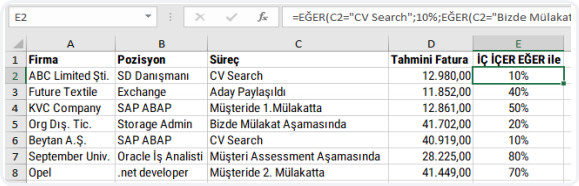
Whereas it would be way better to find the percentage ratio with the VLOOKUP function if we had a table of all processes and ratios.

 

Yeess…
If you have read, comprehended and applied everything so far, your are an EXPERT in VLOOKUP now. 👏🏻

You can share this post to help many people get informed and get Excel Training to use Excel more efficiently and productively. 👍🏻

GEOGRAPHY LINKED DATA TYPE

GEOGRAPHY DATA TYPE

There were always data types in Excel. But they were traditional data types like text and number. Stocks and Geography data types are unique because they are accepted as linked data types. Linked data types have a connection to an online data source. For now, linked data types are only Stocks and Geography. Microsoft plans to share more linked data types in the future with the feedback from the clients. We will be sharing the new linked data types here.

Office 365 users can access a lot of data of countries by clicking their names only. You will see the Geography linked data type in the data Types group of the Data menu. This features allows us to get and list a lot of indicators like flags, capitals, currencies, data ratios, populations, military power, president, average life time of the countries through http://data.worldbank.org/. It is possible to access more detailed information of countries with the link I gave you, and you can even download this data in the Excel, Csv and Xml format and use them in your reports.


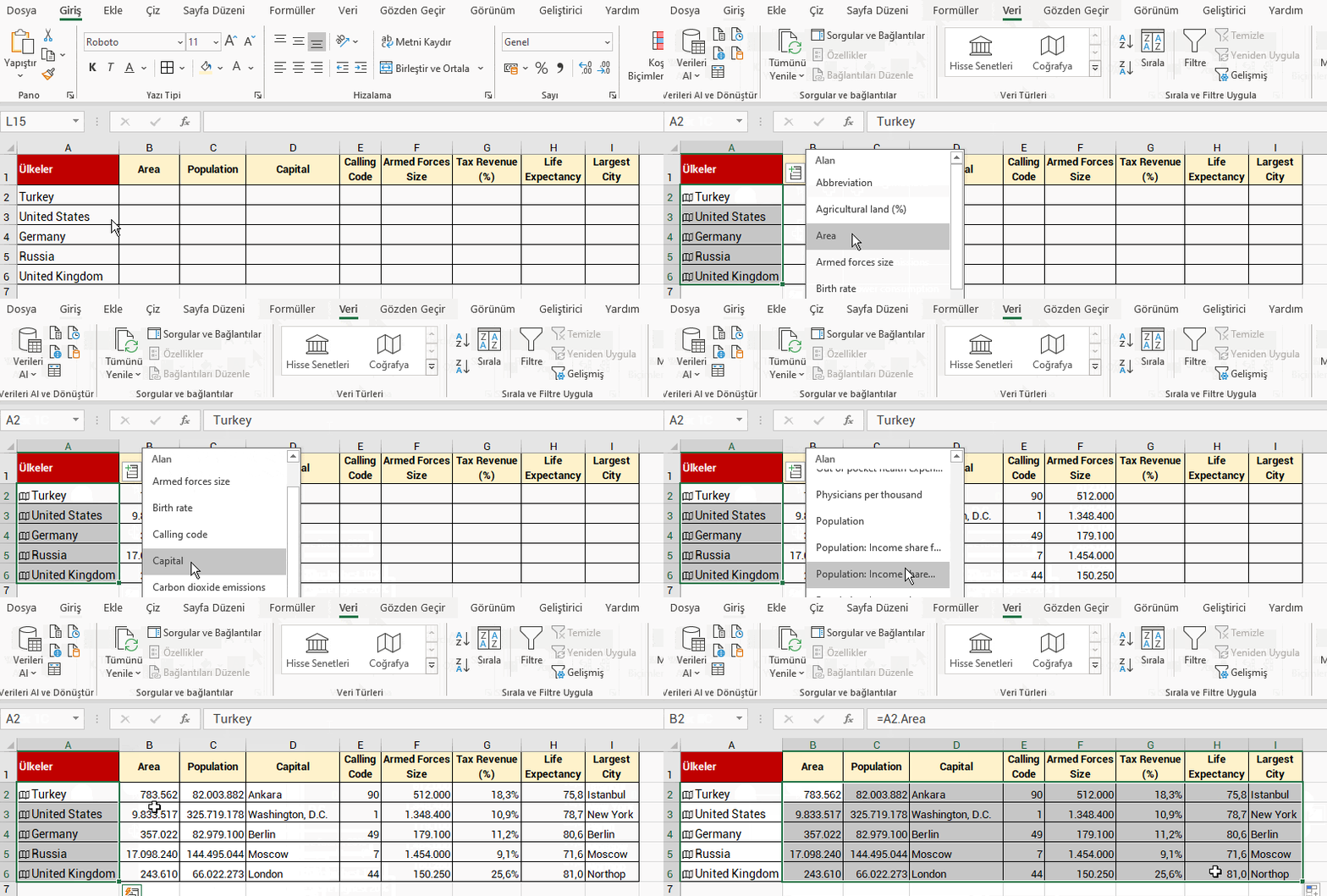
It is enough to write the country name in the A column one under another and choose the Geography type.


DATA CART

First, we wrote the names of 5 countries and chose the Geography data type.
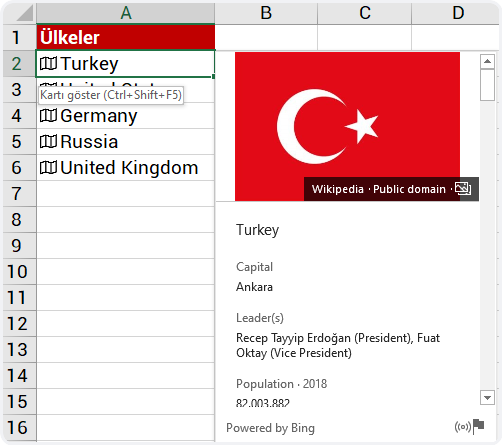
After the country name in the cell is turned into the Geography data type, an icon is seen in the cell.
Click the icon to view the cart. Cart shows a list of areas and related values.
There might be a lot of areas that you can view and work with depending on the data. If you click the icon next to the country name, you will see that you can get the flag of that country and a lot more information.


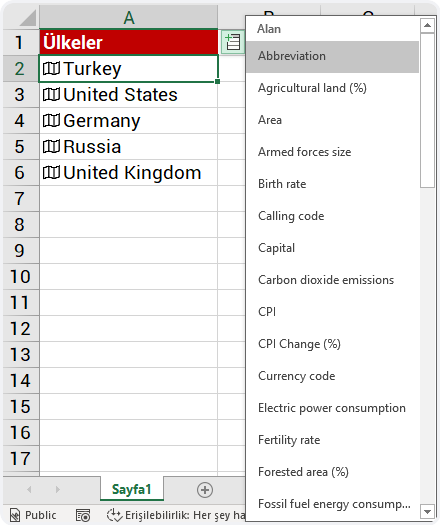
When you select a country in a cell, an option list called Add Data pops up next to it.
When you choose the information you want to get from that list, that information will be listed quickly next to it.


You can list a lot of information about the country or countries you select next to one other and turn them into a table like below. If you want, you can indicate the data you want to get for a country and then drag it down to list the data of all countries in the indicated area.


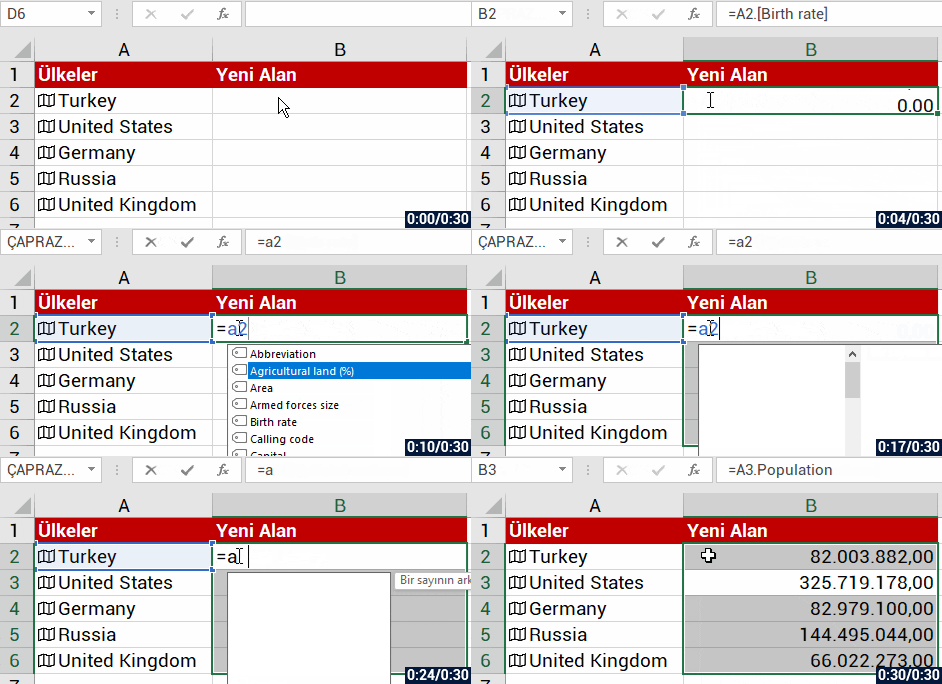
You can write =A2. to call the data in the related areas from the defined names with a formula.


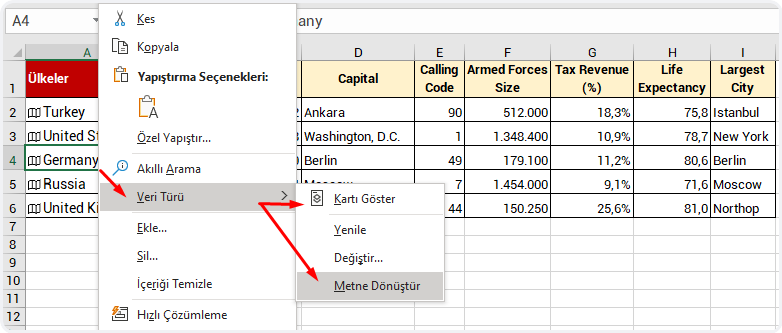
When you right-click the countries, you can see the Show Cart option within Data Type in the menu. (Ctrl + Shift + F5)  You can turn off the feature by converting the data into Text. You can cancel the Geography data type whenever you want like converting the tables into a range.


I hope this helps you.👍🏻
You can share this article with your friends and make it reach out to many people. Don’t forget: The more information is shared, the more valuable it gets.

Create Poll Rules with MS Forms

Polls play an important role in enabling communication with your employees and customers, tracking and analyzing or determining business strategies. You can easily and quickly prepare and share e-forms with MS Form during your digitalization process.

In this article, we will be talking about adding rules to the Forms polls. You can manage polls based on questions by adding rules. You will be able to manage the next question that will be displayed depending on the answer user gave to the questions.

How Does It Work?

For example, while collecting personal information of the employees:

  • The What is your license class? question can be displayed if Yes is chosen from the Yes/No options of the Do you have driving license? question.
  • Detailed questions like the Ages of the children, Number of children can be displayed to the user when the Married option is chosen from Married/Single of the What is your marital status? question.

Thanks to the feature, user will not see all the questions while collecting information from them and polls will be answered more quickly and consistently and interactive work will be executed.

How Is It Done?

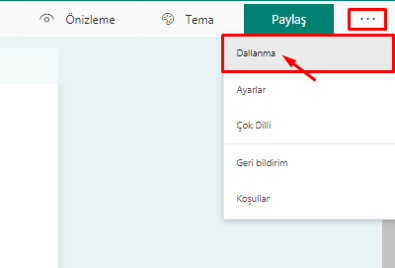
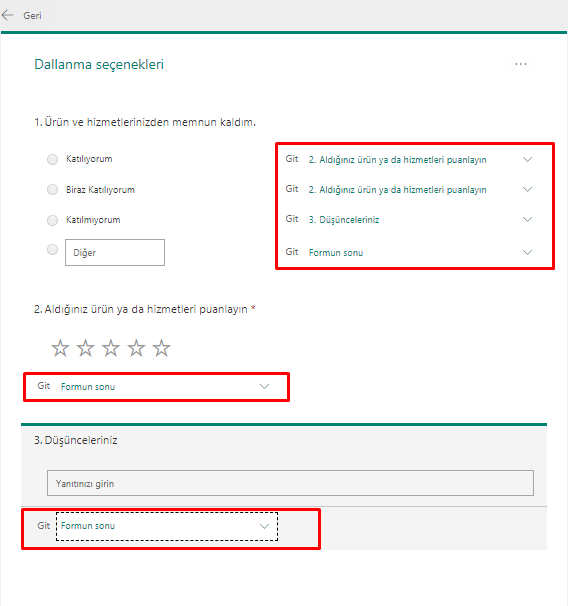
First, you need to create the poll questions. After you create the poll questions, choose Branching within … that is next to the Share button on top right.


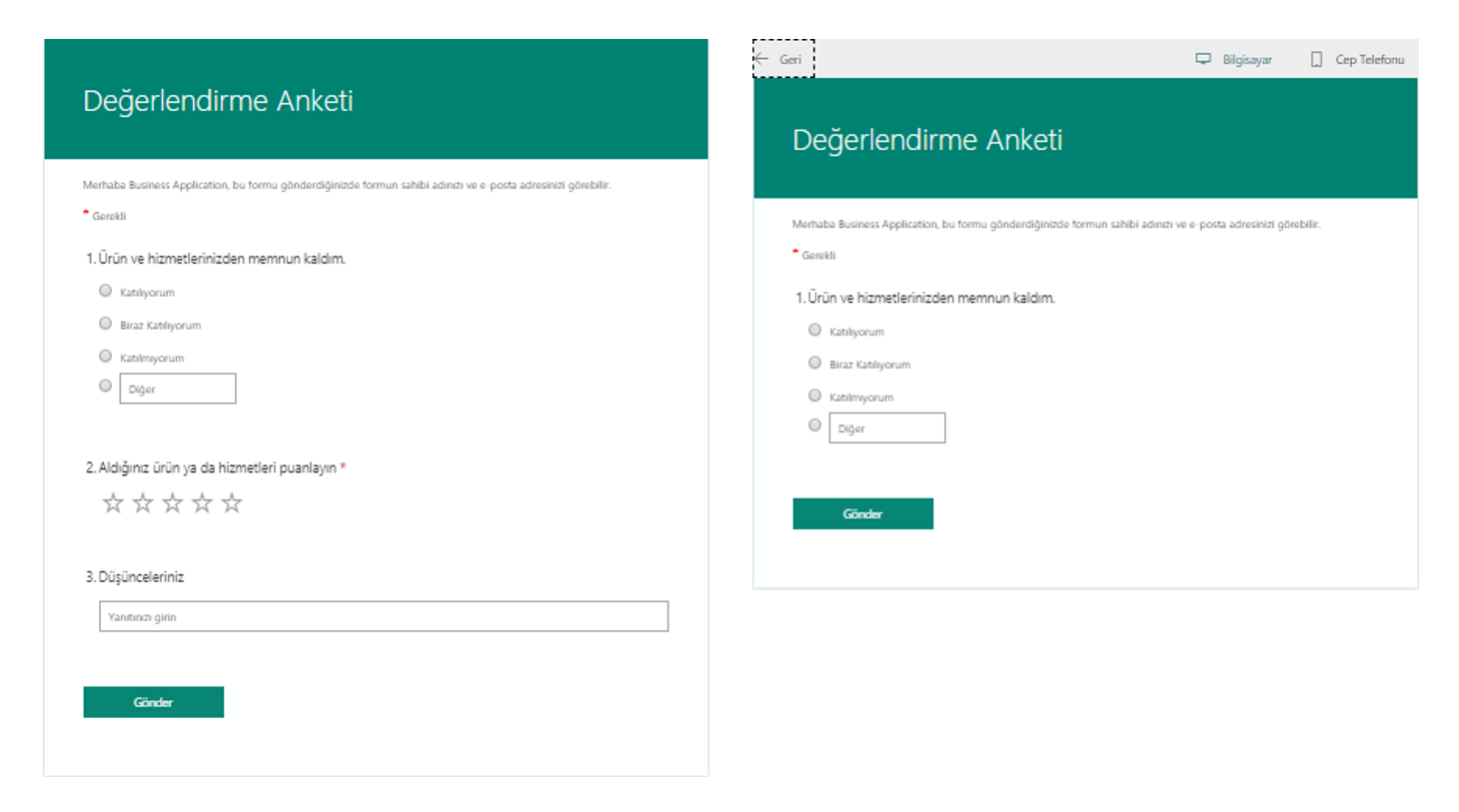
We have created the first question with 4 options.
The directing action is complete by choosing the next question that you want to be asked for each option from the list that pops open.

Your actions will be saved that moment and you will be able to test your scenario whenever you want with the preview feature.

Let’s analyze the scenario below.

For the 1st question
If the 1st option is chosen –> It will lead to the 2nd question
The 2nd question will be answered –> the form will be complete

For the 1st question
If the 2nd option is chosen –> It will lead to the 2nd question
The 2nd question will be answered –> the form will be complete

For the 1st question
If the 3rd option is chosen –> It will lead to the 3rd question
The 3rd question will be answered –> form will be complete

For the 1st question
If the 4th option is chosen –> It will be waited for the user to write a text into the Other field.

We have analyzed that the form questions can be connected to rules and the sort of the questions can be changed.

When you want to cancel the actions you have executed, you can reset your document by clicking Reset withing … that is on the top right of the same screen.


Forgotten passwords can cause you problems!

Unupdated and forgotten password can cause you problems!

With the developing and improving technology, our business processes are obliged to keep up with the digital as well. You get most of your work done with your passwords and access many files through your accounts. Can you imagine not being able to access you e-mail or company apps when you forget your password? This situation slows done your business processes while affecting the time in which you could Updating Passwords is the biggest workload of the IT employees

Going to the help desk (IT Department) when you forget your password, the IT department getting your request and determining a new password, the new password reaching you slows down and halts most of your work. On the other hand, you can go to the help desk since they don’t work on the weekends and cannot access your e-mails that moment even if you have to respond right then. And this may interrupt all your business plans.

On top of all that, resetting passwords, unlocking locked accounts and all the requests for updationg profiles and passwords take too much time of the IT departments and became an extra workload.

You can relieve all the business process with a solution that allows employees to reset their own passports and unlock their own accounts, thus create their passwords based on the password criteria determined by the infrastructure.

You can read this article for more detailed information.

You think that you are secure against Cyber Attacks?

Even though digitalization grants us with a faster and more productive working, it also brings along a lot of threats.  You have to be careful about the security of your data, files, and most importantly your accounts.

According to the “The Global Risk 2019” report of World Economic Forum, cyber attacks are seen as one of the biggest problems after global warming and economic issues. Companies need to have international standards and their certificates concerning security and privacy in order not to face many situations that affect security like cyber attacks.


Having security certificates is an advantage for the companies. The certificate that we come across the most is ISO 27001. But, what is ISO 27001?

ISO 270001 Information Security Management System is a management system that includes people, processes and information systems in guaranteeing the corporate information security and that is supported by the senior management. It has been designed to protect information entities, secure parties and enable sufficient and proportional security controls. ISO 27001 Information Security Management Systems contains the corporate structure, policies, planning activities, responsibilities, applications, procedures, processes and resources.

Why is it necessary?

Enabling business continuity, keeping and protecting data are among the most important factors. When you lose your data, you face outcomes that cannot be compensated. Lost or stolen data can cause many disaster scenarios.

By means of ISO 27001, companies can define, manage and decrease their risks. Since it is a must to take all security measure to get the ISO 27001 certificate, companies can execute all their controls and minimize security vulnerability.

Companies can get the ISO 27001 document that has many metrics from keeping information safe, internet outcome to physical security by meeting all the security criteria. One of the most important criteria is password security but as the passwords get more complex, the employees might forget their passwords or write their passwords on note papers in order not to forget! Here come the systems where users can reset their passwords on Web or via SMS to your help.

The password resetting with SMS feature which allows you to include your blue-collared employees to the process is very important for these solutions.

You are sure that you have a secure password?

While choosing your password, make sure that you determine a strong password and reset your password the moment there is a suspicious action. Online systems like social webs are not good at all at reminding you how old your password is, how week it is and when it is better to change it. The best method to protect your account and take measures against cyber attacks is for your company to have a password resetting solution.

How optimistic are women about technology?

How optimistic are women about technology?

Technology affects everyone as it goes in many places in life. As much as is was a strong crowd saying “What were we doing without technology?”, there are also people that say “Was it like this before, where are those old times?”. The human race knows that they need to adapt quickly to the changes that come due to their survival motive and try to achieve this at the highest level. The occupation of Facebook by the generations before us may be one of the best examples of this. Since this change is obligatory, it does make some people uneasy. This can be divided into generations or as Female-Male.

The infographic below reflects how tech optimism breaks down along the lines of gender and generation:


Why did women lose interest in Technology?

The issue of women in business life emerges as one of the issues that is frequently mentioned and emphasized by everyone. The place and existence of women in business life is actually very simple, but it can also be very difficult. As a child, classifying toys by gender and attributing gender to business lines can be conditioned obstacles for women to work in many sectors. For example, asking “How can a woman be a taxi driver?” and saying businessman instead of simply saying businessperson …

There are many sectors in which we cannot see the name of women and cannot be attributed as women’s jobs. One of them is especially the technology area. In the early years of computers, the presence of men on the hardware side and women on the software side was in balance. In the 1980s, this balanced situation deteriorated with computers entering the house. Because one of the biggest reasons women were pushed out of technology was computers entering the house. As computers were introduced to the market as men’s toys, women’s interest in technology gradually began to decline. Thus, technology started to be seen and treated as men’s interest. However, did you know that the first software developers were women? For example, Ada Lovelace is considered the first computer programmer in history.


Technology Sector’s Hidden Heroes

Lack of balance between private life and work life, insufficient wages and benefits, scarcity of career promotion opportunities, and the male-dominated structure of the sector are among the prominent negativities. Decision-making processes in companies where a male-female balance cannot be established also negatively affect financial and managerial performances. According to Deloitte TÜBİSAD’s Report on Women in the Technology Sector, companies with management balance work more successfully and more efficiently. It means balanced corporate management for 73% of women, different perspectives in decision-making for 71%, and increase in commercial gain and financial performance for 51% in a management team with a gender balance.

According to the research conducted by Deloitte with TUBİSAD with white-collar women working in the technology sector, 85% of them are satisfied with being in the technology sector. Because the global, dynamic, changing, creative and developing structure of the technology sector are some of the attractive aspects of the sector for women. Being able to shape the future and to do interesting and challenging jobs is more attractive to women in the Y and Z generation society. The technology sector is also considered as one of the challenging areas for women.


How Should Women be Supported in their Career Journeys?

Turkey, while seen as a country that is seen risky of increasing and deepening of gender inequality, technology is seen as an area that is high in risk. In our society, there is more trust in men in areas seen as risky. Women are not desired to be in risky areas not only in the office environment but also in daily life. However, it should not be overlooked that women are more successful in staying cool and managing crisis in a crisis. Because first of all, being able to accept the presence of women everywhere will be one of the most important steps in their career paths.

Increasing the number of female leaders who can be role models for employees may be another action that can be taken. In addition to the inequality between small and large enterprises, especially in the use of information and communication technologies, there are also great differences between men and women, old and young, educated and uneducated individuals. For the future of the industry, focusing on eliminating digital inequalities and developing digital competencies is of great importance. The equality of the number of men and women working in technology can be achieved by directing female students to more technical fields during school years.

Programs for young high school and university students can be prepared so that support should start from education to business life. Female student quota can be placed in technical and engineering departments of universities.

ISACA, one of the organizations working on this subject, stated: “The SheLeadsTech work program continues to raise awareness to draw attention to the problems faced by women working in the technology sector and to contribute to the reduction of these problems, to establish a network among women, to provide support in areas of low motivation and to contribute to their education where they are lacking. “

How do we feel about this issue as PEAKUP? What do we think?

Especially for the increase of female employees in the informatics sector, incentives to be applied to companies and non-governmental organizations are very important. Efforts to increase women’s employment should be diversified, and respect for the different ideas of self-confident women with goals should be developed. We believe that the actions to be taken will increase the strength of the team and successful works will come out of these environments. It should not be forgotten that success will be achieved through the solidarity of men and women.

As PEAKUP, we try to maintain the female employee ratio as at least 50%.

In addition, women who continue to work successfully in spite of all conditions can sometimes get caught between motherhood and work life. Processes such as maternity leave and the desire to raise the child up to the nursery age can interrupt their careers. For these reasons, many sectors hesitate to prioritize women when hiring. Flexible and remote working opportunities can create a workforce model that will take women forward, because of the digital age we are in, so that they do not leave the sector due to the constantly developing nature of technology. The ability to benefit from the workforce of women from all fields by providing opportunities for not only working women but also housewives to do high value-added jobs may be one of the points to provide support.

As a result, conditions are not equal due to the nature of human beings, but when trying to create fair and equal working opportunities in society ceases to be seen as a duty, we will be a society that goes further and produces more. Because, women will continue to exist in all areas of working life despite all the difficulties they face.

We hope to never have to talk about a subject such a Women in Technology in the upcoming years…


Microsoft Teams : Not-That-Frequently Asked Questions

Does Teams work Offline?

Nope. Teams an application that was developed to run online.

Teams Offline


When should I use Chat and when should I use Teams channels?

Chat groups are ideal to discuss and work on a project before sharing it in a channel. And the channels are recommended to be used in a more formal way since they bring more main groups like departments and projects together. For example: Creating channels for sharing success stories, announcements of the HR, splitting projects into phases is more efficient whereas using chat groups for daily flows would be more recommendable.

Tip: You can name the Chat groups to be able to find them easier later.

Chat Group

Teams


Where do the Deleted Teams Go?

The Teams are in a restorable environment called soft-delete for 30 days after they are deleted. But once that period is over, they are deleted completely. Each Team represent an Office 365 group and the files shared are stored in SharePoint Online Sites. And the chat in channels are stores in the mailboxes of teams.

Teams Architecture


Can Teams track and report user behavior?

Off course. There is Audit Logs in Office 365 Security & Compliance Center (protection.office.com) where all the Office 365 applications are tracked and can be reported. Teams activities can be also tracked with Cloud App Security, Azure Sentinel or PowerShell (Search-UnifiedAuditLog) apart from this method.

Audit Logs


Can I set a profile picture for Guest users?

Yes, but not within Teams! You can execute whatever update you wants through Azure Active Directory/Guest user accounts or use the Set-AzureADUserThumbnailPhoto cmdlet. Defining a default profile picture for all guest users can be a good way to indicate the users outside your company.


Can I send and announcement to multiple teams simultaneously?

Yes. The Format option is shown with the letter A at the bottom of the channels. When you lick it, you can share announcement with different channels of different teams by using the “Share in multiple channels” option.

Announcement


Does it make sense to use Teams instead of e-mails?

Teams is a very useful application for cooperation within the company and with first-degree partners. With chats, online meeting, co-authoring on a file and integrations, it gets to be a roof platform and increases productivity. But, since e-mails are still a common language for chats and between companies, it is not completely dispensable.

Teams vs Outlook


Why can I not blur my background in meetings?

The precondition to blur your background is a computer with Advanced Vector Extension 2 (AVX2) graphics. If your computer doesn’t meet this precondition, you cannot use the blur feature. You can also try to use the blur feature with the Ctrl+Shift+P shortcut.

Blur


Is there a limit for a Teams message size? If yes, what is it?

It is approximately 28 KB (media not included). This limit is for the e-mails sent to the Teams channels, messages that come from connectors and applications and all the messages that you can send by copy-pasting.

Limits


Why are the mail addresses of channels are so weird?

Team mail addresses work under the teams.ms domain connected to a different tenant Microsoft administrates, not to Office 365 tenant. Mails sent here are not sent to users one by one. Instead, they are sent to the mailbox of the channel a gets to be sent as a message to the channel via a connector. Apart from that, it is also stored in the SharePoint Site connected to the team, hence as a .eml file under the Files of the team.

Channel mail addresses


What is Priority Access?

Priority Access is the messages that you receive the notifications of when you state your status as Do not Disturb and turn off Teams notifications. You can set the people whose notification you will always receive through the Privacy tab of Teams settings. Urgent Messages are among the notification with priority and can be sent by anyone. Urgent messages can only be sent in Chats, not in channels.

Priority Access


What do Bots do in online meetings?

Bots have a lot of different responsibilities, specific to this question we can see that bots enable the connection between Teams and Stream. And also, a bot joins the meeting when it is started and when it is over, the bot send the record to Azure Media Services and then it is transmitted to Stream.

Create and Track Lists from a Center with Microsoft Lists

microsoft lists logoMicrosoft Lists

Track information with Microsoft Lists. Organize your work. Customize for your team. Track your work, convey information and visualize data with your team from a center.

Stay on top of it all with Lists, your smart information tracking app in Microsoft 365. Work with anyone, anywhere. Configure your lists to better organize events, issues, assets, and more.


Make lists smarter with Microsoft Lists in order to do more in Microsoft 365

Tracking information is a part of our daily lives. Writing something or using electronical tables work for simple things. However, while dealing with hundreds or thousand of data and when you need to coordinate with your teammates and match with the new workflows, it can become overwhelming rapidly. Since global pandemic has turned remote working into the new normal, we also face the difficulties caused by having to stay in sync while staying home.

We have created Lists that will save you time and overcome difficulties. Lists that are easy to use as a spreadsheet, help you to track any information, invite others to cooperate and use rules to synchronize everybody in addition to customizing forms and flows with Power Platform. Simple, smart and flexible way to track information and do more.


Start from a Template or an Excel file, or from the scratch

Create by using various templates, transform an Excel file or start from the scratch to bring you vision to life.


View your data in your style

Visualize your data in different ways and interact with them. View the information in a gallery or track your work on a calendar.


Set rules and send a notification to your team

Create rules to automatize processes based of your list data. When a change is made, send yourself or others a notification.


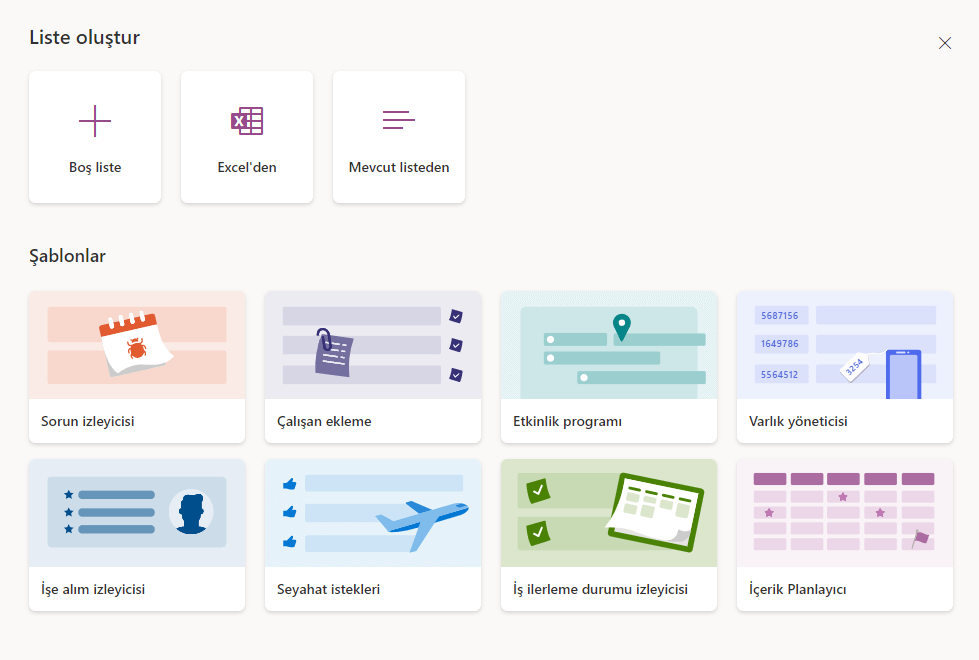
Create a New List


  • You can create a blank list.
  • You can import a list as a Table from Excel.
  • You can continue from an existing SharePoint team list.

microsoft list yeni liste ekle

Create, share and track lists with people you want

Start quickly with ready-made templates. See the recently and frequently used lists.Track and manage lists wherever you’re working. Share lists with others easily.

Favorites and Recent Lists in Microsoft Lists


Keep everyone in sync with lists in Teams

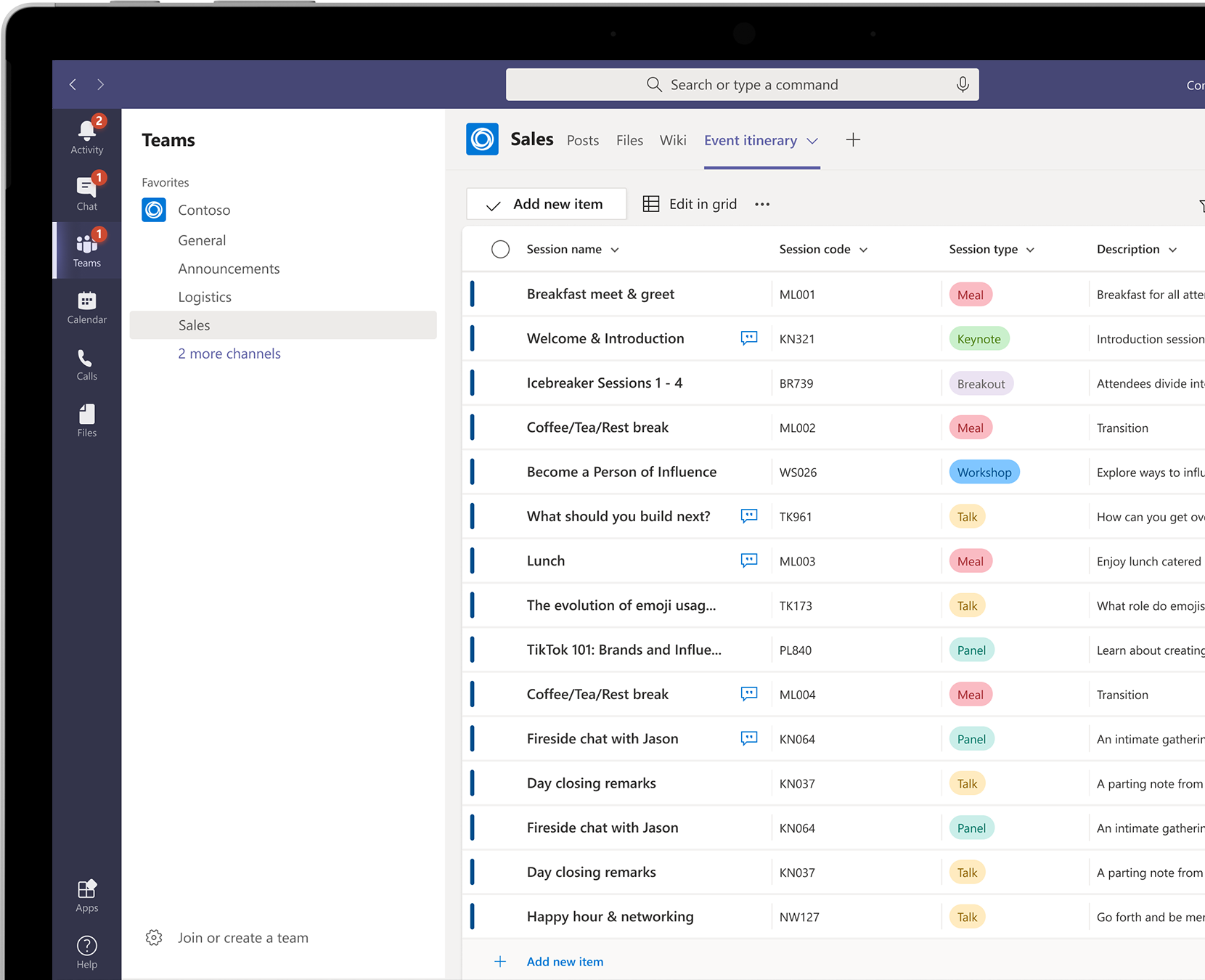
Work together in real time with conversation and lists side by side. Track what matters most to your team using rules, reminders, and comments.

A list of sessions for an event, including details about each session, shown within Microsoft Teams.

Customize lists for whatever your team needs

See your lists any way you want using calendar, grid, gallery, or a custom view. Configure basic form elements and highlight important details with conditional formatting.

A list of assets shown in grid view in lists


Add automation with Power Platform

Build custom productivity apps using lists as the data source. Extend forms with Power Apps and customize workflows with Power Automate.

An applicant’s information shown on an HR recruiting list within Microsoft Teams


You can get the other details about Microsoft Lists here.
You can read our other blog posts here.

The Importance of Digitalization for the Human Resources

We are all aware that digitalization and technological transformation have taken an important place in our daily and business life with an increasing momentum. More importantly, as our age is rapidly digitalizing, companies that cannot keep up with this trend have only one question to answer: “Are we one or do we continue?”

In this article, we will talk about the importance of digitalization for Human Resources.

Digitalization of Recruitment Processes

The studies conducted by PWC show that the effort towards the use and dissemination of Human Resources technology solutions is increasing day by day. With the support of technology, Human Resources can easily report and spend the time saved in this process by managing the follow-up and analysis processes in digital environments, to become a “strategic business partner”.

If we need to explain with an example, with the digitalization of recruitment processes, Human Resources departments have been able to reach the appropriate candidate quickly and close the processes 50% faster compared to the past. In addition, job search sites, online platforms, and mobile applications continue to be a big part of the process day by day. Now, many companies have created their candidate pools in digital environment and made the first interview with the candidate over the internet, earning days or even weeks.

The introduction of the concept of “Home Office” into our lives with digitalization

Especially with the acceleration of digitalization, we cannot help but mention the concept of “home office”, which we have started to hear a lot. We have already said goodbye to the desktop computer and the paper files filling the cabinets, but with the introduction of Cloud Computing into our lives, we found ourselves in an environment where we can access any information – document we need from anywhere. As such, the expectations of the employees started to take shape in this direction. Of course, we cannot say that every company will be involved in this process, but the number of companies that provide their employees with the opportunity to work from the location they want on certain days of the week (for now), although not full-time, is increasing day by day.

The Contribution of Digitalization to Human Resources

The information that we have obtained by spending our hours and days before is now on our screen with a single click. This is a process that supports companies to take more strategic and fast actions. We are now able to research competitor analyzes, side rights, salary comparisons and many other topics that we can exemplify, in digital environments with our own means. We can say that easy access to information makes our work easier, while increasing competition and forcing companies to be innovative.

Perhaps the most important contribution of digitization to Human Resources departments is saving time. Everyone in the sector is aware that the definition of Human Resources has undergone a great change. Ten years ago, when we talked about Human Resources; bureaucratic processes, legal transactions and payroll processes came to mind, now Human Resources has gone into a more strategic, employee satisfaction-oriented process, which has been stripped of all these papers. With digitalization, they had the opportunity to focus a lot of their concentration on employee satisfaction, while spending much less time following many processes, including training planning, performance evaluations, personnel and inventory follow-up. The biggest goal of every company is to be the preferred workplace by candidates, and now with the support of all these digitalization processes, we can say that Human Resources departments can spend their efforts in this focus.

We are in the middle of a rapidly changing, developing and digitalizing era. There is only one way out that will make us different from others, and that is to adapt quickly and use our time efficiently. The way to do this is through digitalization.

Click here to meet Velocity, your companion that will support you in your digitalization processes!


Why Should You Get a Consultancy Service for the IT Sector?

Why Should Human Resources Departments Get Consultancy Services?

Many companies can be biased if they have not used this service before.

In this article, I will tell you how you can get this for 25.000₺ instead of 60.000₺. How? I will be giving the answer in the rest of the article.

First of all, let’s talk about the benefits of using this service:

Working with a professional consultant is very important primarily for the prestige of your company. The person representing your brand and the physical conditions make the first impression, after which a specialist consultant who technically speaks the same language with the candidate expresses the position to the candidate in the best way possible.

Based on research and my experience in the industry, a total of 450 resumes are analyzed to recruit an IT staff, which means 8 hours of work for an HR employee. Let’s say that they call about 250 candidates they found suitable from these resumes and made a pre-interview; this would mean about 20 hours. If approximately 50 people of these candidates come to the interview, the total work and organization time spent exceeds 50 hours. As a result, the organization of the second meetings means introducing technical teams with appropriate profiles, reference works etc. and thus, about 15 more hours of work is spent. In this example, if everything goes well, 93 hours is spent for a candidate. Considering tasks that interrupt, breaks etc., we can say that a staff member works only for this position for 1 month without doing anything.

Now if you wish, let’s talk about what it will cost you.

Let’s say a human resources employee cost ₺10,000 for a month to the employer, and the cost of the time spent by an IT staff interviewing these candidates would be around ₺10,000. In addition, if we say that the money you spend on career portals and the amount of equipment spent for this organization is minimum ₺3.000, you have already spent ₺23.000 from your pocket with a very simple calculation.

Now, let’s come to the scenario where you have hired the candidate you found and you are not satisfied.

You have worked so hard, spent overtime, endured a lot of costs and employee you were looking for finally started the job, but there is a problem. You are not satisfied with the candidate or the candidate is looking for something different and you have to part your ways! IT staff, as you know, are costly resources. In this example, let’s assume you employ a software development employee, and assume you work for two months with him/her with a net salary of ₺9,000 per month. The cost of this personnel to the employer will be a minimum of ₺35,000 for 2 months. And the whole process will start over. So, you spent ₺60.000 for a job that was not guaranteed.

Now, I want to talk about what we will provide for you.

First of all, let’s talk about reaching the right profile, which is one of the most difficult issues. IT recruitment consultants analyze hundreds of candidates that you cannot find on career portals, and provide interviews with the most suitable profiles for you. In these interviews, competent recruitment consultants question your personal competencies and select the profile that best suits your corporate culture and teammates and take them to the next level. At this stage, the requirements for the position are questioned, the technical competencies of the candidate are measured and the most suitable profile is selected for your institution, manager and job.

Afterwards, the candidate is introduced to you without wasting time. We organize the whole organization in order to make these meeting organizations in the most comfortable way possible.

In all processes of the candidate, which we call end-to-end consultancy service, we undertake processes like analyzing resumes, competence and technical interviews, meeting organizations, reference checks etc. and enable you to employ the most suitable profile as soon as possible. In this process, if you are not satisfied with the personnel employed, we immediately work on the same position for free.

The basic need of companies is primarily Human Resources and the right profile that will carry your organization forward adds value to your company.

If you want to get more detailed information about our professional consultancy services, you can contact us.