Human Resources Theories

The concept of Human Resources, which has emerged with the Industrial Revolution, has reached an important point for the existence of companies with the development of the industry and economic life. Human Resources management is an approach that focuses on the creation, development and maintenance of employee resources and maximizing the productivity of both employees and companies. We can briefly summarize the reason for the existence of the human resources department of the companies as follows:

It increases the quality of the working environment by regulating the relationship that employees establish with the working environment. Maximizes productivity and profits. Helps employees to easily adapt to changes. Helps to motivate employees and achieve company goals. Defines the value of the employee and contributes to this value. Creates and nurtures team spirit and corporate loyalty. Contributes to the resolution of internal conflicts by working as an advisory body. Contributes to strengthening the image of companies in the market. [1]

1 – Standard Human Resources Model

This model is derived from the approaches that emerged in the 90s and 2000s. This model starts with business strategy and ends with improving financial performance through HR processes. For this model to be effective, the HR strategy must be in line with the business strategy. Hence, the HR strategy is derived from the overall strategy. This model focuses on improving internal performance. It focuses on efficiency, innovation and quality, which in turn constitute financial performance. Some HR practices directly lead to improved performance. For example, a good education can directly lead to a better performance.

2 – 8-Box Model

This model shows the internal and external factors that determine the effectiveness of HR activities. For example, if there are some skills deficiencies in the sector, this affects our human resource creation and recruitment processes. These conditions also affect the legislation, and the working principles of HR.

In this model, the history of the company, its culture, the technology it uses and its workforce form the structure of the company. This structure is the factors that determine the communication established with HR, the goal to be achieved and the effectiveness of HR policies.

3 – HR Value Chain

This model is one of the best-known models. According to this model, everything done in HR can be divided into two categories: HR activities and HR outputs. HR activities are daily activities such as recruitment, compensation, training and are usually measured using HR metrics. HR outputs are the goals to be achieved through HR activities. These outputs are employee satisfaction, motivation etc.

RESOURCES

https://www.businesstopia.net/human-resource/importance-human-resource-management

https://www.digitalhrtech.com/human-resources-models/

The CONCATENATE function

The Concatenate function concatenates texts in different cells and allows you to write them in one single cell. Texts can be edited in a very flexible way with the Concatenate formula.

In this manner, you can freely change any field you want in the formula and get the desired result.

The arguments of the formula consist of successive textual expressions.

=Concatenate(text1, text2,…)

You can select the texts to be concatenated from the related cells one-by-one.

In the example bellow, the address is created by concatenating the Strict, Street and Number. When the A2, B2, and C2 cells are concatenated directly, it created the MerkezAyazma37 result.

To see a more familiar result like Merkez Strict Ayazma Street Number:37 (this is the Turkish way of writing an address), what can we do?

You can write textual expressions like “Street”, “Strict” into the formula with the long method.


*When you need to write a text with the keyboard into the formula, you need to write it into a double-quote (“ ”). Using texts in ” ” in Excel is pretty strict.

A more efficient method for it to be reusable, editable and controlled centrally is to write strict, street, number information into a cell and use that cell as a reference.

Click here to take a look the the details of the Concatenate formula.

In addition, it to possible to concatenate without using a function. You can use the & symbol as a concatenation operator. It works similar to the concatenate function and allows you to concatenate the texts directly.

We have learned how to concatenate texts above. In addition to this, we might want to separate concatenated texts as well.

You can separate texts written in one cell into separate cells with the Convert Text to Columns function. So, it works the opposite way of the Concatenate function. Click here to read our article about Convert Text to Columns.

BT Haber / Deloitte Technology Fast 50

[mk_page_section][vc_column width=”1/6″][/vc_column][vc_column width=”2/3″][mk_fancy_title color=”#000000″ size=”20″ font_family=”none”]As part of Fast 50 program, the fastest growing 50 technology companies of Turkey are determined each year since 2006. This year, the 14th “2019 Deloitte Technology Fast 50 Turkey Program” was held and we are happy to be among the 50 Fastest Growing Technology Companies of Turkey for the 3rd year in a row.


PEAKUP is in the Technology Fast 50 for the third time

Every year since 2006, “2019 Deloitte Technology Fast 50 Turkey Program” is organized. Within the scope of the program, the fastest growing 50 technology companies are determined. PEAKUP that was in the list for 3 years in a row is among the fastest growing technology companies of Turkey.

The fastest growing 50 technology companies in the program implemented in 18 countries and Central Europe apart from America are entitled to participate in Deloitte’s international “Technology Fast 500” program. The fastest growing technology companies in the last 4 years are eligible to participate in Fast 500 EMEA. PEAKUP, who got to be among the 50 companies for 3 years in a row, proved once again that it is growing constantly ever since they day it got established.[/mk_fancy_title][mk_image heading_title=”Deloitte Technology Fast 50″ src=”https://peakup.org/wp-content/uploads/2023/12/peakup_deloitte_odul.jpg” image_size=”large” align=”center”][mk_fancy_title size=”20″ font_family=”none”]PEAKUP CEO Ahmet Toprakçı told that Deloitte Technology 2019 Fast 50 offers a chance for the values born and raised in Turkey to come up and he said: “We are extremely happy to be among the fastest growing technology companies of Turkey once again. It is very important for us to make the growth momentum we have achieved as PEAKUP sustainable. The fact that we have been on this list for the third time proves that the studies and strategies we have implemented have achieved their goals. We will work for the continuation of these successes we have achieved in the upcoming period. Our aim, as a Turkish company with 100% domestic capital and exporting technology to abroad, is to be aware of our society and the environment and to be permanent in this list by producing value with sustainable growth. ” about the success momentum they have achieved in this program.[/mk_fancy_title][/vc_column][vc_column width=”1/6″][/vc_column][/mk_page_section]

Explore the skills of Go To Special!

The function that allows you to detect all cells that contain special data like comments, formula, space, and data validation in your Excel list is the Go To Special function.

With this formula, you can select the cells with formulas at once and encrypt them with a formula; select the blank cells at once and highlight them; select the cells that contain numbers, text, or conditional formatting all together and execute the action you need.

This function is located in the Find&Select button in the Editing group in Home tab.

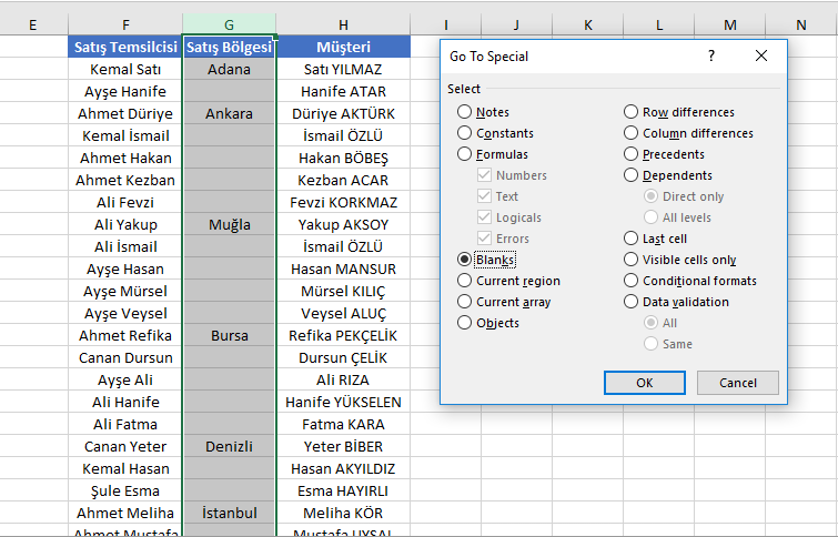
You can also press F5 (you might need to press the fn key as well) and choose Go To Special in the window that pops up.

Explore the skills of the Go To Special window and facilitate your work!

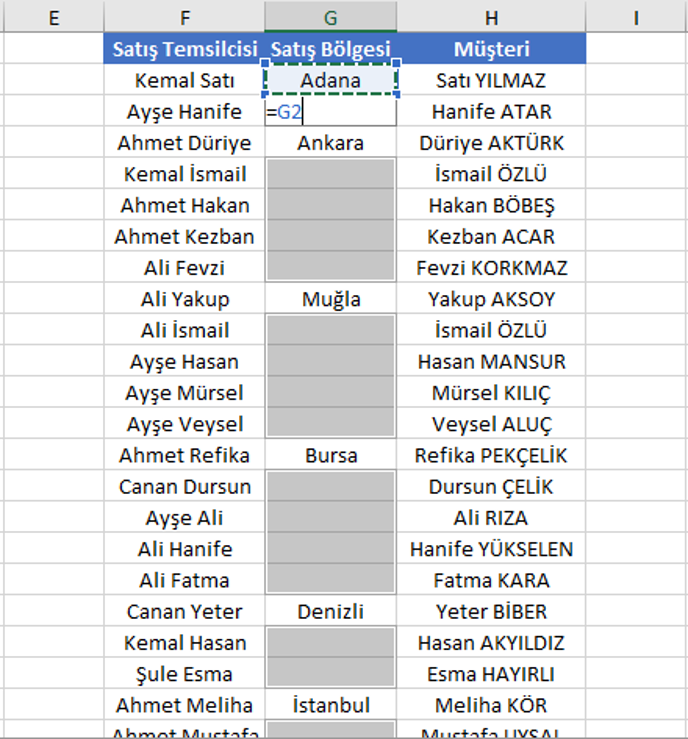
Let’s think about a scenario where we will fill the blanks in the Satış Bölgesi (Sales Region) column with the correct data like shown above.

First, we need to select the blank cells and then fill in the correct the quickest way possible!

How can we fill these cells easily without having to type into each of them one-by-one?

We will execute this action by using two features together.

Action Steps

  1. First, select the column that has the blank cells.
  2. The F5 shortcut (You might need to press the fn key) –> Go To Special
  3. Select Blanks in the window that pops open and click OK.

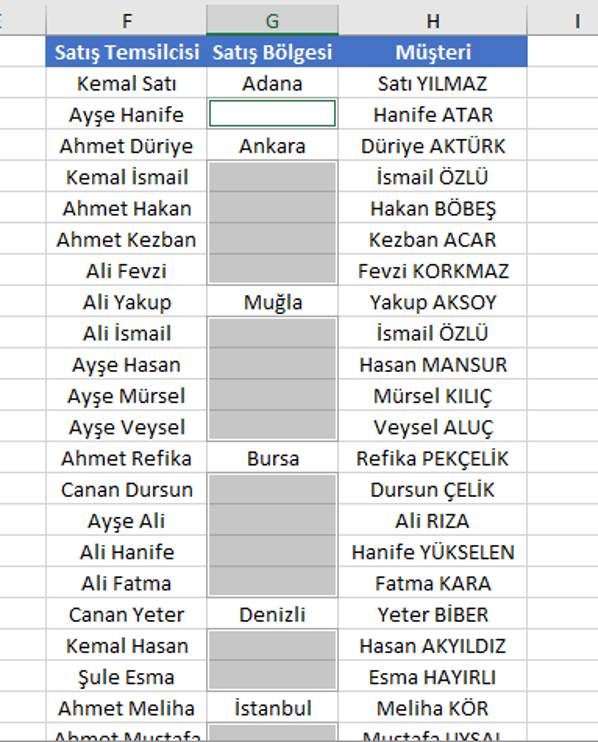
Then, we get the look below

You will see that the selected cells are gray and the cell on top is white. You can write into this cell directly. Which means that you don’t have to click to cell to be able to write. The reason why we focus on this is because the areas you want to work on are already selected, so no mouse click is needed. When you click a selected area with the mouse, it cancels the selection so you should be careful about it.

  1. We will write =G2 (the address of the cell right above it) through the keyboard directly. This way we get to say that we will use the data above to Excel. The most important point: Yes, we will write the data above but how is this formula work in the whole column?

    We move onto the fifth and last step for this action.
  2. For the =G2 action to work in all the selected areas of the column, we should press the CTRL and ENTER keys at the same time. After these steps, the Sales Region column will be filled completely.

    Other Go To Special Articles

    Take a look at this article to detect and encrypt the cells with formula by using the Go To Special window. And take a look at this article to learn which action to take to convert Blank Cells to a fixed text.

Introduction to Digital Forms with MS Forms

Communication with your employees and customers, and tracking and analyzing it  play an important role in determining your strategies. You can quickly prepare and share e-form with MS Form while digitalizing. You can take a look at this article to read business scenarios with MS Forms and practical examples in detail.

Your forms that you work on by logging it with your user information are stored in a secure environment. Since you keep your forms in a digital environment, every action you take is saved immediately. For this reasons, your forms don’t get lost or deleted.

10 Outstanding Skills of MS Forms:

  1. The form can be previewed on the mobile phone or computer.
  2. You can receive an e-mail notification when your form is responded.
  3. You can add rules to your form. With these rules, you can change the questions according to the answers given to the questions. Thus, the question displayed by the user changes according to the answer given by the user.
  4. Answers can be analyzed by question-based or person-based custom charts.
  5. Responds can be viewed on the Excel list.
  6. The background color or picture of the form can be customized.
  7. When you delete a form, it goes to the recycle bin. Thus, you can activate the form for reuse whenever you want.
  8. You can make forms with points. You do not have to show the scores to the person who answered the form. When you want to show it, you can show it as soon as the form is answered.
  9. The user can be allowed to respond the form multiple times.
  10. The questions can be mixed within themselves. The options of the questions can be mixed within themselves.

MS Forms Screen

You can start creating your own form by click the New Form button here. The forms shared with you or group forms can be viewed in this screen.

Create a Form

We can divide a created form into 6 main topic.

  1. Questions
  2. Answers
  3. Preview
  4. Theme (Design)
  5. Share
  6. Setting

We can start by naming the Form first. You can add your company’s logo or an image suitable for you company’s concept through the add image button right next to the name of your Form.

Add Form Elements

The questions type you will add to your poll with the Add new button look like this:

There are 4 standard question types.

  1. Option
  2. Text
  3. Rating
  4. Date

You can view more question types by clicking the arrow button on the right corner. These are other question types like Ranking, and Likert.

You can add an image for the form element you have added.

The buttons in the upper right corner are:

  1. Make a duplicate of the question (default)
  2. Delete the question (default)
  3. Change the order of the questions (default)

In the lower right corner:

  1. For questions with options; allows markings multiple options
  2. Requires the question to be responded (default)

If you think that you have completed the form when you are done adding the questions, you are ready to share it.

It is enough for you to click the Share button on top right and copy your form’s link  and then send this link to the people you want.

Even if you share your form, any change you make is active all the time. People who you shared it with always see the latest version of your Form.


Excel Shortcuts1

It is possible for you to get to your destination the fastest way when you use shortcuts. But when you get support from the Navigation, it is probable that you will taking the fastest and traffic-free way.

We, as Office lecturers, offer you the most special and functional Excel shortcuts below for you to get to the result you want faster and in an optimum way.

Move Cells Between Pages

The Alt Shortcut:
It is enough to drag and leave while pressing the Alt key to move cells. This way, you can move cells to the page or location you want.

Create a New Line in the Cell

Alt & Enter Shortcut:
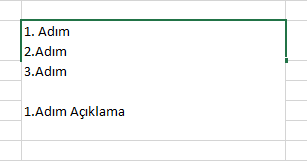
You can write texts one under the other or create articles in a cell in Excel just like in Word. It is enough to press the ALT and ENTER keys to move onto the next line in the cell.

Fastest Way to Create a Chart

Alt & F1 Shortcut:
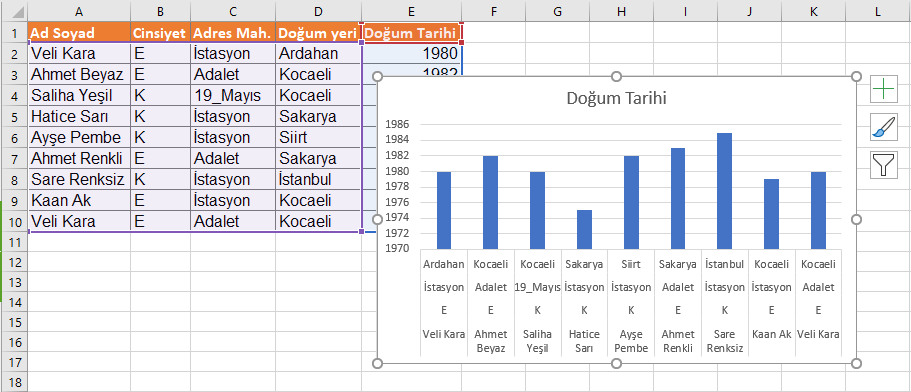
It is the shortcut that allows you to create a chart the fastest way possible.
Select a field in the list you want to create a chart from and then press the Alt and F1 keys. A chart like the one below will be created quickly.

Navigate in the Page Fast

Ctrl & Arrow Keys:
You can quickly navigate in your list with the Ctrl & Arrow keys. You can reach the last full cell in your list. You can change the direction with the arrow key you want while pressing the Ctrl key.
*This is a general shortcut, you can even use it to navigate between texts while writing a text on your device.

Select Step by Step in the Page

Shift & Arrow Keys:
Allows you to select the cells in your list one by one. You can change your selection with the arrow key you want while pressing the Shift key.
*This is a general shortcut. You can even use it to select texts while writing a text on your device.

Bulk Selection in the Page

Ctrl & Shift & Arrow Keys:
You can select one by one with the Shift key, and if you want to make this action faster you can add the CTRL key. This way you can select way faster!
*This is a general shortcut. You can even use it to select texts while writing a text on your device.

Experience the easiness of adding and deleting a column/row quickly.

Ctrl & –  Shortcut and Ctrl & + Shortcut

You can delete columns/rows with the Ctrl & – keys,  and add columns/rows with the Ctrl & + keys.

Make the Cells Writable

F2 Shortcut:
We usually double-click the cell in order to write something in it. But it is enough to use the F2 shortcut instead of this.
*This is a general shortcut. You can even use it to change the name of a file on your device.

Enter Data to All Selected Cells

Select the cells you want to enter the data to.
Don’t click anything else once you are done selecting. Write the text you want directly.
Press the Ctrl & Enter keys for the text to be distributed to all cells.

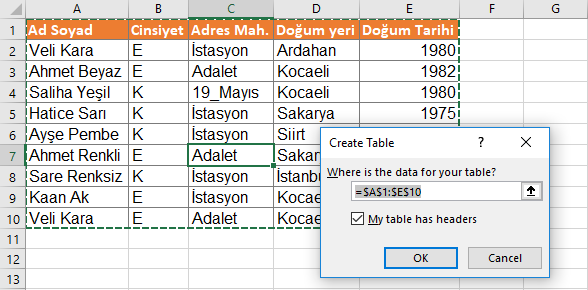
The Fastest Way to Create a Table in Excel

Ctrl & L Shortcut:

Repeat the last action!

F4 Shortcut:
Allows you to repeat your last action.

For example, highlight the A1 cell with green and press the F4 key after clicking the B1 cell. You will see that the B1 cell will be highlighted with green as well! Since the previous action is repeated every time, you can just keep doing this with F4 forever!

It allows you to pin a cell while writing a formula. There are 4 different ways ($A$1 , A$1 , $A1, A1) to use this feature which is also known as Cell Reference Styles.

*Note: You might need to use the fn key (depending on your computer) to use the function keys with F like F1 and F2.


A combination of little clicks and keys can accomplish great things!

Excel Shortcuts 2

It is possible for you to get to your destination the fastest way when you use shortcuts. But when you get support from the Navigation, it is probable that you will taking the fastest and traffic-free way.

We, as Office lecturers, offer you the most special and functional Excel shortcuts below for you to get to the result you want faster and in an optimum way.


Format Cells

Ctrl + 1 Shortcut :
Opens the Format Cells window.
It is the window that allows you to execute formatting actions like font type, cell color, cell borders in detail.

Repeat the Last Command

Ctrl + Y Shortcut:
As often the Undo (Ctrl Z) shortcut is used, this shortcuts that does the opposite exists as well. With Ctrl Y, you can do the actions that you have undone with Ctrl Z.

Fastest Filter

Ctrl & Shift & L Shortcut:
To filter your list quickly, you can use the Ctrl & Shift & L shortcut.

Print

Ctrl & P Shortcut:
You can use the Ctrl and P shortcut the print your page.
*This is a general shortcut. You can use it to print a file, document or image on your device.

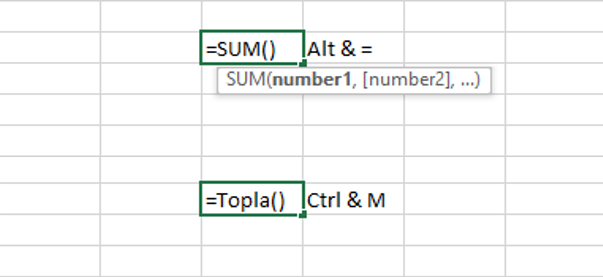
Sum Formula

Ctrl & M Shortcut:
Would you like to write the =Sum() formula the fastest way possible? You can create your formula instantly with the Ctrl & M shortcut.

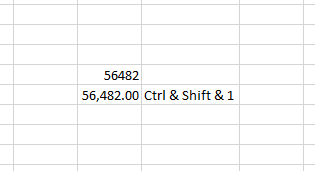
Show Decimal Points

Ctrl & Shift & 1 Shortcut:
You can show the decimal points of numbers quickly.

Save As

F12 Shortcut :
When you ned to save a copy of the document or need to save it in a different format, you usually go to File Tab –> Save As. This action takes a while, you can access the Save As window directly by pressing F12.

Go To Special

F5 Shortcut:
We use the Go To Special Window to detect the cells that contain special values like Conditional Formatting, Data Validation, Formulas… The shortcut to open this window is F5.

Open a New Document

Ctrl N Shortcut :
Allows you to open a new Excel document.
*This is a general shortcut. Allows you to open a new one of the same tab of a file, document or browser.

Add Comments to A Cell

Shift F2 Shortcut:
Allows you to add a comment to the active cell.

Add a New Page

Shift F11 Shortcut:
You can add a new page to Excel with this shortcut.

Replace

Ctrl H Shortcut :
You use the Fin&Replace screen to replace a text completely.
The Replace window is opened with the Ctrl & H shortcut.


*Note: You might need to use the fn key (depending on your computer) to use the function keys with F like F1 and F2.


A combination of little clicks and keys can accomplish great things!

Interview with Our CEO Ahmet Toprakçı / ICT Medıa

PEAKUP CEO Ahmet TOPRAKÇI:

“We see that the technology priorities of all sectors, especially retail, health, production, and logistics, are gathered in cloud technologies, artificial intelligence, internet of things and robotic process automation. It is foreseen that this will leave 1 job out of 5 out of the picture, but new job descriptions will balance this employment gap. “

PEAKUP CEO Ahmet Toprakçı said that in the first half of 2019, financial uncertainty and exchange rate fluctuations in the economic markets were intensely felt. Stating that the sector is cautious about new investments for this reason, he added: “In this economic fluctuation, institutions focused on productivity in the products they use and excellence in business processes rather than new investments. This perspective has created a movement area for domestic software companies that develop products. In such uncertain times, ‘Pay as you use’ monthly options play an important role in purchasing decisions.” He stated that for many years the sales policy of the companies have been like this and continued: “Many firms are in recession in the industry or getting smaller, we completed the year with a growth of over 40 per cent in terms of net financial performance. We have barked on a global journey with our products such as PassGate and Sign & Go, Velocity that have been patented in Turkey and abroad. Brand registration titles abroad, especially the United States of America and England, were among our important goals this year. We carried out modest sales actions in countries such as the Emirates. In addition, this year we were among the top 50 fastest growing technology companies in the Deloitte Technology Fast50 research. Our biggest goal is to continue this momentum in 2020 with our R&D activities.[/mk_fancy_title][mk_fancy_title color=”#000000″ size=”20″ font_family=”none”]Toprakçı, said about the it developments awaiting Turkey and the world in 2020: “As the importance of technology unites increase day by day, we can talk about the need of the tasks of CIOs changing considering the managements being aware of this situation. We expect the continuous and sustainable IT performance adopted by CIOs in Turkey, which is at the top of the list with 64 percent, and the following operational efficiency topics to be replaced by improving customer experience, cyber security and smart systems design in the coming periods.

We see that the technology priorities of all sectors, especially retail, health, production, and logistics, are gathered in cloud technologies, artificial intelligence, internet of things and robotic process automation. It is foreseen that this will leave 1 job out of 5 out of the picture, but new job descriptions will balance this employment gap. Ahmet Toprakçı stated that the most important investment areas as an institution are human resources. For this reason, he stated that they will continue to invest in human resources in 2020 and continued: “The most important starting point for quality global products is the right human resource; therefore, we will continue to invest in our employees and our organizational culture. Of course, our investments will include R&D activities, channel structure for international marker and digital marketing. The R&D activities focus on software technologies, machine learning, business analytics, microprocessor circuits and multiple hardware components. The budget we spare for these areas is around 17 percent of our total turnover. We see an increase of 15-20 percent in our workforce planning next year.

We will be making this increase mostly on the technical resources side. Business intelligence, IoT, Mobile and Web-based Software departments will be the main areas in which we will be recruiting. ”

Stating that digitalization is a never-ending process, Toprakçı pointed out that it is wrong for institutions to perceive digitalization as transformation. Emphasizing that an approach such as “we will go digital and it will be over” would be wrong for institutions and organizations, Toprakçı continued his statements as:

“Therefore, companies should first adopt this perspective. When we look at the history of many institutions, we see that there are stillborn projects or wasted money. Instead of buying random software, it is very important to listen to the demands and needs of employees and customers and to move forward by choosing appropriate solutions. Because we see the people who work in the institution as the ones who start digitalization.

In addition, the perception that digitalization is only for institutions is very wrong. Digitalization is a concept that affects both the lives of individuals and the lives of institutions. Individuals and institutions have to keep up with digitalization in the face of these developing technologies. Companies that are afraid of digitalization and cannot give up traditional company understanding are gradually disappearing in this competitive market. When we look at the new generation, we see that they are smart, talented and have higher technology adaptation processes. While their expectations are different, so are their perceptions. For this reason, we have to offer smart systems that will make life easier. Long story short, digitalization is a constant journey and it must be accepted that this journey will not end. “

We Joined the Made in Turkey Podcast As a Guest

We joined the Made in Turkey Podcast as a guest and talked about a lot of topics from our establishment process to our products, from our office life to getting the Great Place to Work certificate and entering the Deloitte Technology Fast 50 list. You can listen to the program by clicking here.

XLOOKUP: THE GAME CHANGER

THE XLOOKUP FUNCTION

Last you on August 29, two new important functions were announced: XLOOKUP and XMATCH. In this article, we will be talking about what the XLOOKUP function is, when and how to use it. When you start using this function, you will just not be able to let it go.

I want to mention a few things about VLOOKUP first: as you know, the VLOOKUP function was indispensable for many users, even those who didn’t know wanted to learn it. And even in the 7 Most Used Excel Functions presentation Microsoft prepared, the first function is VLOOKUP.

As dispensable as it is for some users, it was useless for some others. Because VLOOKUP required some conditions to run and the function returned us the first match it found. On top of that, it decreased Excel’s performance since it could cause unnecessary calculation in the stated table range. It is the function for those who have unique data, but in a table with duplicate data -i.e. recurring data-  it wasn’t very useful since it didn’t give us all the records. Of course, there are some methods to list all the records, but you either had to solve the issue by using auxiliary columns or list all the records with the Array Formula.

LONG LIVE THE DYNAMIC FUNCTIONS!

Fortunately, in September 25, 2018 the new dynamic array functions were announced and we got to breathe a sigh of relief. After waiting for such a long time, now the new function will be able to return a whole array instead of returning just one single result.

Instead of writing an Array Formula that was known as “MULTIPLE VLOOKUP” by everyone, we can list all the records of a data with the FILTER function easily. *We will be talking about the details in its own article. (Here are the article links of Microsoft, you can take a look.)


With the release of the XLOOKUP function, old functions like VLOOKUP and HLOOKUP are not needed anymore. And also, as they get into more detail and design what they can do, it seems like we will not need these functions:
VLOOKUP > HLOOKUP > INDEX > MATCH > OFFSET > IFERROR(VLOOKUP).. what else do you want?!👏🏻


Just one formula can:

  • Look up both horizontally and vertically,
  • Bring the first or last record, find the data considering the wildcard characters,
  • Bring the data we want on the left without a condition like the lookup_value has to be in the first column of the table_array in the VLOOKUP function,
  • Bring approximate vales in  certain range like the TRUE option in the range_lookup argument,
  • Allow you to say write this if no data is found without the need to use the IFERROR formula,
  • Find the most approximate lowest or highest value if there is no exact match.
  • And it offers all these in a way more faster way than before.

Enough with all the details, let’s see what this function does. 👍🏻


THE XLOOKUP FUNCTION SYNTAX


=XLOOKUP(lookup_valuelookup_arrayreturn_array, [if_not_found], [match_mode], [search_mode]

There are 6 arguments in this function.
The first 3 are required, the last 3 are optional.

Now let’s take a look at what these arguments mean, i.e. what the function wants from us and what we will give it.

Argument

Description
lookup_value

Required

The lookup value
lookup_array

Required

The array or range to search
return_array

Required

The array or range to return
[if_not_found]

Optional

Where a valid match is not found, return the [if_not_found] text you supply.

If a valid match is not found, and [if_not_found] is missing, #N/A will be returned.

[match_mode]

Optional

Specify the match type:

0 – Exact match. If none found, return #N/A. This is the default.

-1 – Exact match. If none found, return the next smaller item.

1 – Exact match. If none found, return the next larger item.

2 – A wildcard match where *, ?, and ~ have special meaning.

[search_mode]

Optional

Specify the search mode to use:

1 – Perform a search starting at the first item. This is the default.

-1 – Perform a reverse search starting at the last item.

2 – Perform a binary search that relies on lookup_array being sorted in ascending order. If not sorted, invalid results will be returned.

-2 – Perform a binary search that relies on lookup_array being sorted in descending order. If not sorted, invalid results will be returned.


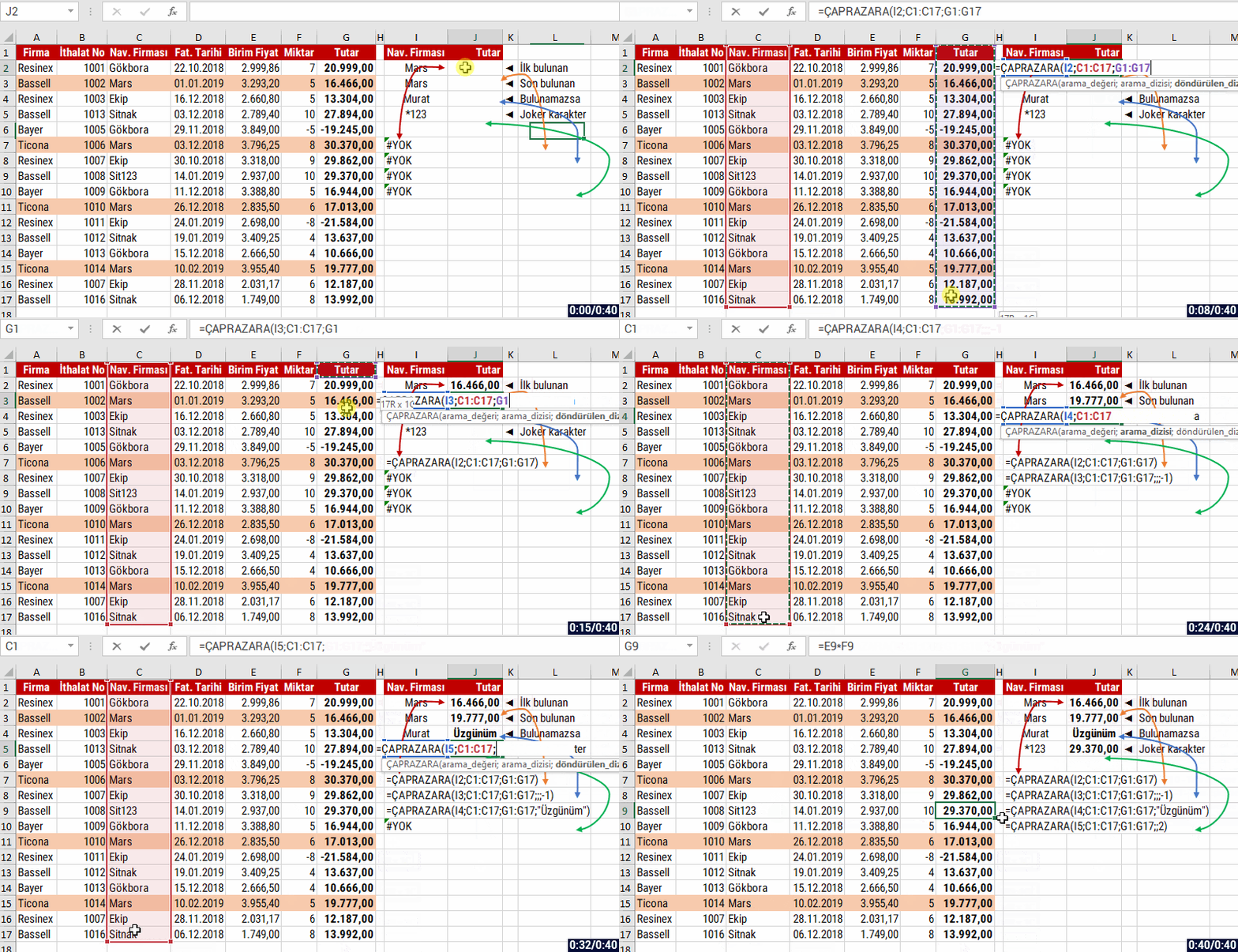
In the few examples below, you can see what you need to write when there is the first record and last record is not found of the looked up data and how to use it when looking up with wildcard characters.


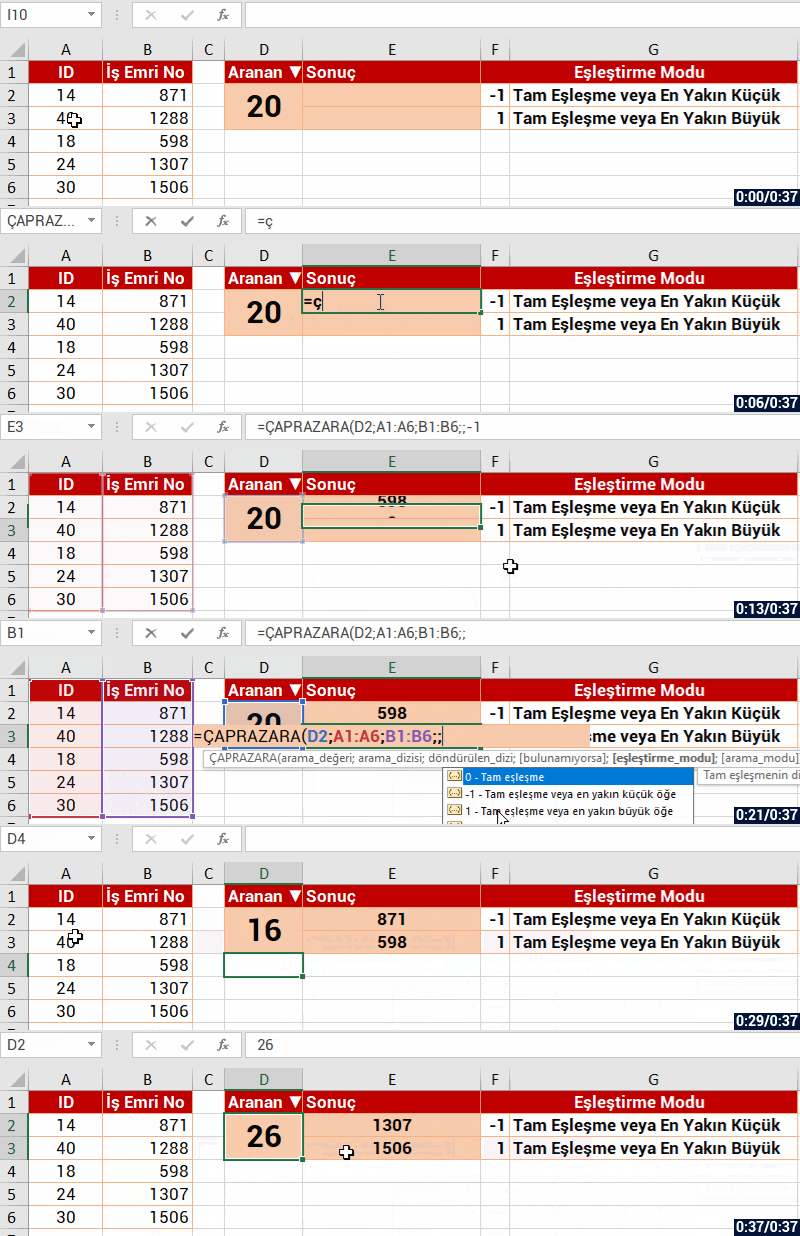
Let’s have an example of the Match Mode argument with exact match or highest and lowest options.
 

So far we got the data from the column we wanted by looking up in the column just like in VLOOKUP. Now, let’s use this function like HLOOKUP.
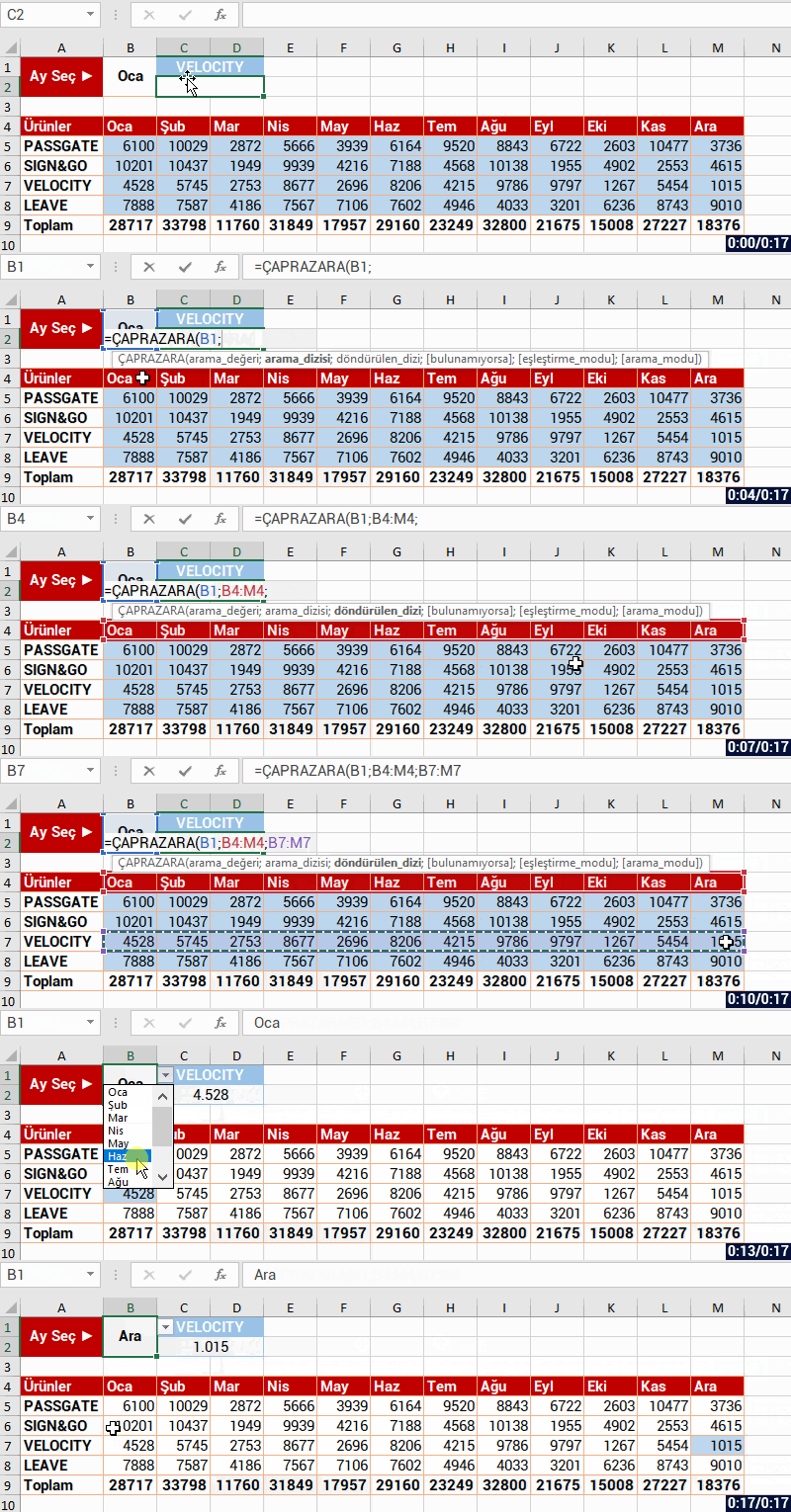


Now, let’s have a 2 dimension look up. Let’s match based on both the Product name and Month, and find the data in the intersecting cell. Users who know how to use the INDEX and MATCH functions usually do the matching we are about to the with the INDEX + MATCH + MATCH formulas. Now, let’s see how it is done with XLOOKUP.


Lastly, let’s compare the VLOOKUP and XLOOKUP function while finding the same data. At first, you will see that you get the same result, but when we add or delete a column, the VLOOKUP function will give us an incorrect result. But the result will not change in the XLOOKUP function. The reason is this: Since we write the column number that we want to get manually in VLOOKUP, the col_index_num stays stable but the column of the data changes and it returns an incorrect result. And in XLOOKUP, it doesn’t matter how many columns you add or delete, since we stated the column we want, that column changes dynamically and returns the correct result without producing any errors.


You can see the result in this example.

I hope this was helpful..  👍🏻
You can share this post and help many others get informed as well. Keep in mind that information gets more valuable when it is shared.