Skip to content
  • SOLUTIONS

    Artifical Intelligence Solutions

    Automate processes and increase efficiency by creating smarter, and digital operations with AI Solutions.

    Artifical Intelligence

    Simplify operations with AI & Copilot

    AI Agents

    Automate complex business processes intelligently

    Employee Network Analytics

    Strengthen collaboration by analyzing team connections

    Smart CV Analysis

    Instantly shortlist via resume insights

    Azure AI Foundry

    Deploy cloud AI models securely at scale

    Smart Expense Tracking

    Automate reports and eliminate errors

    Helpdesk Assistant

    Resolve requests faster with Jira automation

    Microsoft 365 Copilot

    Manage your daily office work faster with AI assistance

    Explore All

    Data & Business Intelligence Solutions

    Turn raw data into insights—unify, analyze, and visualize to drive smarter decisions.

    Microsoft Power BI

    Visualize data instantly and share intelligent insights

    M365 Meeting Analytics

    Analyze meeting outcomes to drive team productivity

    Azure Data Factory

    Securely connect and move data across systems rapidly

    Microsoft Fabric

    Unify data and analytics in a single intelligent platform

    Azure Data Warehouse

    Store data securely to drive high-performance analytic

    IMS Reports

    Convert pharmaceutical data into insights and strategy

    Digital Activity Tracking

    Measure productivity via active and idle time analysis

    Explore All

    Business Application & Automation Solutions

    Streamline processes and boost business with smart apps and automation.

    Microsoft Power Apps

    Quickly build custom apps that simplify your workflows

    Microsoft Power Pages

    Design secure, low-code websites with ease

    Microsoft Power Automate

    Connect workflows and eliminate repetitive tasks

    Desk Booking App

    Manage hybrid work with easy desk booking

    Meeting Management

    Capture notes, track actions, save time

    Microsoft Copilot Studio

    Build custom AI assistants & experiences

    Contract Management

    Monitor contracts and prevent delays proactively

    Audit Application

    Manage audits and ensure compliance with smart alerts

    Maintenance Management App

    Track issues, assign tasks, and streamline resolutions

    Explore All

    Cloud & Security Solutions

    Secure, scalable and future ready. Protect your data, optimize your cloud and empower your business.

    Cloud & Security

    Optimize, secure, and scale your cloud

    Microsoft Purview

    Ensure data compliance and manage organizational risk

    Azure Expert MSP

    Optimize Azure via expert-managed services

    Azure Arc

    Seamlessly manage hybrid data & apps

    Microsoft Defender

    Cihazları ve kimlikleri akıllı savunma ile koruyun

    Change Management

    Align strategy & culture for transformation

    Microsoft Sentinel

    Detect & respond faster with AI security

    Microsoft Intune

    Securely manage devices from anywhere

    Microsoft Entra PIM

    Control privileged access and maintain compliance

    Explore All

    Microsoft Licensing Solutions

    Simplify your license selections. Optimize costs, ensure compliance and get the most out of Microsoft solutions.

    Microsoft Licensing

    Simplify licenses, reduce costs, and increase efficiency

    Microsoft 365 Business Premium

    Empower SMBs with advanced Microsoft tools

    Microsoft 365 vs Office 365 Comparison

    Find the balance between productivity and value

    Microsoft 365

    Boost productivity with secure apps & AI

    Microsoft Teams Rooms Solutions

    Transform meeting rooms for hybrid collaboration

    Microsoft 365 E3 vs E5 Comparison

    Instantly find the right business plan

    Software Licensing

    Cost-effective, long-term software access

    GitHub Enterprise + Copilot Licensing

    Code faster and securely with AI

    Explore All

    Email Signature Management Solutions

    Centralize email signatures, turning every message into a marketing opportunity.

    Industry

    Retail

    Promote new offers in every customer email

    Manufacturing

    Keep factory and office signatures updated

    Logistic

    Build a professional image across all units

    Platforms

    Office 365

    Seamless signatures on Outlook & all devices

    Google Workspace

    Central, instant signature rollout for Gmail

    Exchange Server

    Easy setup without complex server settings

    Explore Now

    Digital Workplace Solutions

    Unite corporate and field teams in a digital workspace aligned with your corporate culture.

    Industries

    Manufacturing

    Reach blue-collar teams anytime via mobile

    Construction

    Bridge the gap between site and office

    Retail

    Unite store and HQ in a single culture

    Produtcs

    Leave Management

    Flexible and dynamic leave management

    Modern Intranet

    Digital workplace reflecting your culture

    Explore Now

    Self-Service Password Management Solutions

    Reduce IT workload and enhance security with SMS-based password reset.

    Industries

    Public Sector

    Devlet kurumlarında veri güvenliğinin ilk adımı

    Explore Now
    Popular Blog Posts
    PEAKUP Becomes the First and Only Microsoft Frontier Partner in Türkiye
    EA Volume Discounts Are Ending: A New Era in Microsoft Licensing Strategy
  • NEWS & UPDATES
  • BLOG
  • CORPORATE
  • CONTACT
EnglishEN
  • TürkçeTR
  • EspañolES
  • SOLUTIONS
  • NEWS & UPDATES
  • BLOG
  • CORPORATE
  • CONTACT
  • SOLUTIONS
  • NEWS & UPDATES
  • BLOG
  • CORPORATE
  • CONTACT
English
  • Türkçe
  • Español
×

Tag: Office365 User Profile

  1. Home
  2. Tag Archives: Office365 User Profile

Display the Office365 Information of the User You Choose

Offıce365 User Information

Office 365 Users

is a data source that enables you to import data to Power Apps. You can access the user profiles in your company by using your Office 365 account with the Office 365 Users connection. There are various titles like your own profile information, other employee’s profile information and manager information.

In this article, we will be using the UserProfile feature.

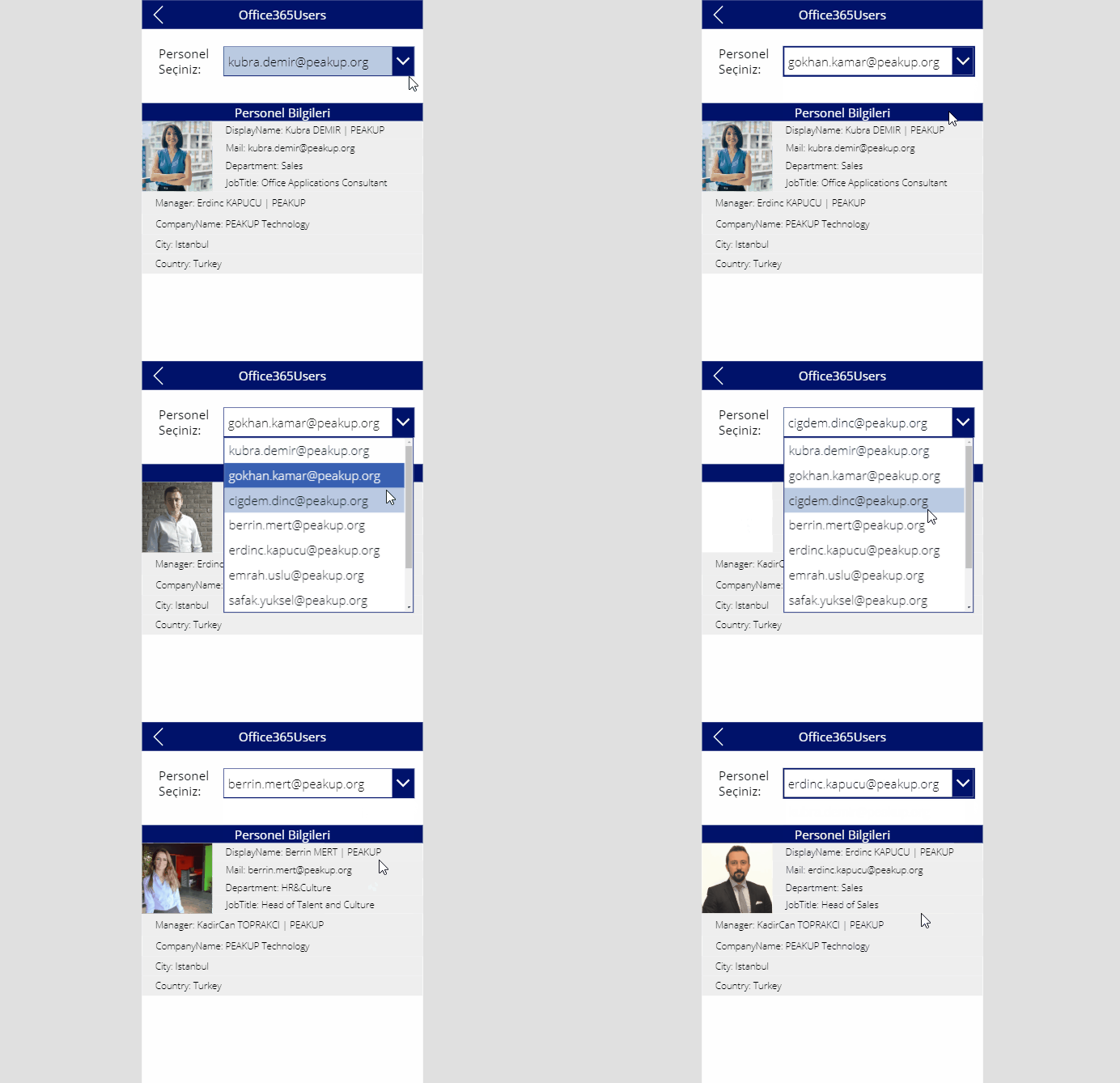
With this feature, you can view details of each user among the company personnel like shown in the GIF below.

Information to Use

The users formula is used with the formulas below.

  1. MyProfile (to access your own profile)
  2. UserProfile (to access any user’s profile)
  3. Manager (to access any user’s manager profile)
  4. DirectReports (to get data as a report)
  5. SearchUser(to search any user in the system)
  6. UserPhoto(to access any user’s photo)

Each one of the title above can be more detailed while used with the sub titles below.

  • City
  • CompanyName
  • Country
  • Department
  • DisplayName
  • GivenName
  • Id
  • JobTitle
  • Mail
  • MailNickname
  • mobilePhone
  • OfficeLocation
  • PostalCode
  • Surname
  • TelephoneNumber
  • UserPrincipalName
  • AccountEnabled
  • BusinessPhones
  • Manager
  • Photo

Add Office 365 Users Connection to the Mobile App

Go View –> Data Sources –> Add Data Source –> Write Office to the search bar and add the Office365Users connection.

Create Office365 connection in a Mobile App

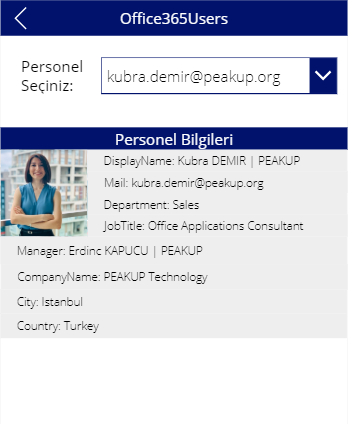
You need to add a Dropdown list, Image to show your photo and Label to show textual data to your own app in order to design a screen like the one below.

*The name of the Dropdown List used in the scree is Dropdown2. The formulas have been written according to this item name.

Formulas

Displaying the user details based on the e-mail address chosen from the dropdown list.

  • Write the formula below into the Image property of the Display item.
    Office365Users.UserPhoto(Dropdown2.Selected.Value)

There is information like displayName,Mail, Department, JobTitle in Labels.
The formulas are the same, we only determine the detail we want in the last parameter.

  • “displayName: ”  &   Office365Users.UserProfile(Dropdown2.Selected.Value).DisplayName
  • “Mail: ”  &  Office365Users.UserProfile(Dropdown2.Selected.Value).Mail
  • “Department: ”  &  Office365Users.UserProfile(Dropdown2.Selected.Value).Department

Different from the others, the Office365Users.Manager formula is used for the Manager information.

  • “Manager: “& Office365Users.Manager(Dropdown2.Selected.Value).DisplayName

You can take a look at the link for the Office365 connection details.

0365 application apps bilgi fonksiyonları Development Direct Reports DirectReports Excel Excel fonksiyonları Excel functions giriş ekranı kullanıcı bilgileri mobil uygulama mobile mobile app mobile application mobile apps O365 Office365 Office365 DirectReports Office365 kullanıcıları Office365 Profile Office365 User Profile Office365 users Office365Users.DirectReports Office365Users.SearchUser Office365Users.User Profile power power apps fonksiyonları power apps functions power apps user functions Power Platform powerapps powerapps connection powerapps connectors powerapps eğitimi powerapps fonksiyonları PowerApps for Office365 powerapps functions powerapps user functions search user SearchUser user fonksiyonu user function user info User Profile UserProfile

Create an Office 365 Users Lists and Search a User

MAKE A SEARCH IN THE OFFICE 365 USERS LIST

Office 365 Users

is a data source that enables you to import data to Power Apps. You can access the user profiles in your company by using your Office 365 account with the Office 365 Users connection. There are various titles like your own profile information, other employee’s profile information and manager information.

In this article, we will use the SearchUser feature.

Thanks to this feature, you can view the list of company users and search users like in the image below.
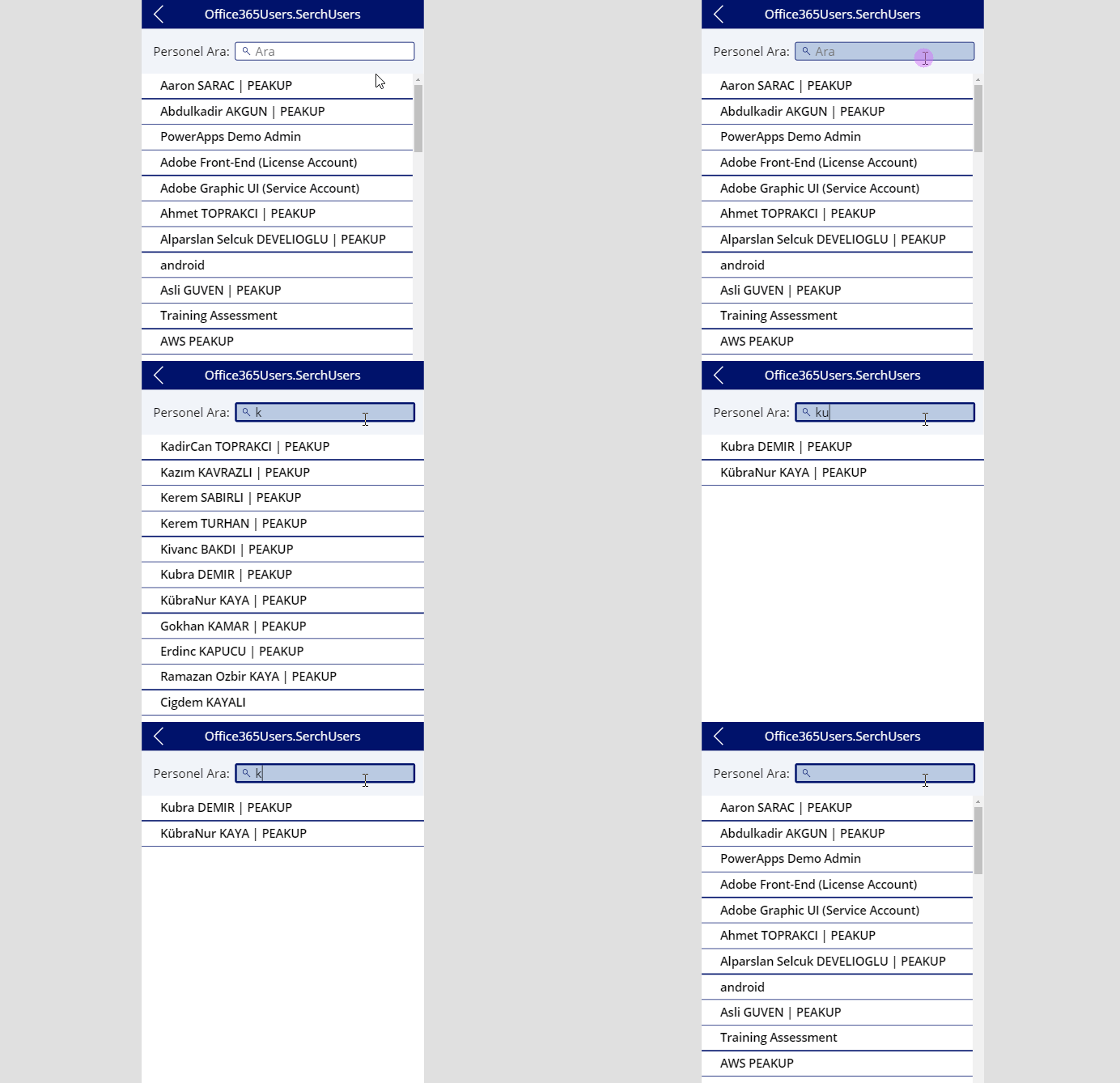
SearchUser özelliği

Add Office 365 Users Connection to the Mobile App

Go View –> Data Sources –> Add Data Source –> Write Office to the search bar and add the Office365Users connection.


 Using the Office365Users.SearchUser Property

You need to add a Text Box and a Gallery item to your own application in order to design a screen like below and make a search by writing user names.

*The name of the Text Box used in the scree is txt_search_user. The formulas have been written according to this item name.
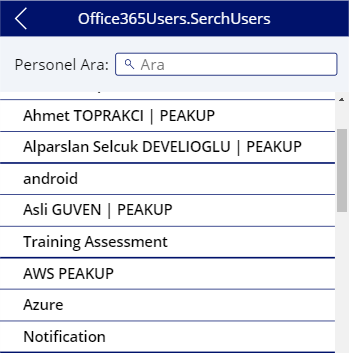
Offıce365Kullanıcıları.SearchUser Özelliğini Kullanmak

“Search” has been written into the Hint Text property of the txt_search_user item through the properties window on the right. And then it has been enabled for the text to be written inside by increasing the left padding through the padding field.

The magnifying glass icon has been chosen among the icons and positions on the upper left of the Text Box.
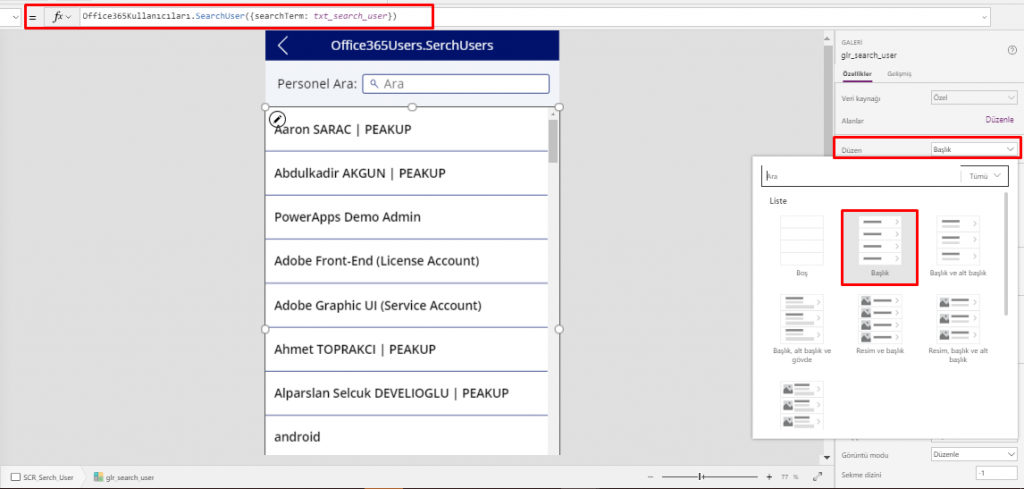
  • This formula is written into the Items property of the gallery item on the screen

Office365Users.SearchUser({searchTerm: txt_search_user})

  • In order to edit the text in gallery, you can click on the Fields Edit in the window on right and edit one by one on the screen that pops up. This way, Fields like Display Name, Department and Mail can be quickly added.Office365Kullanıcıları.SearchUser
  • To create a one line text without an image like in the example, click Gallery and open the Display option on the menu that pops open on right and then choose Title. You can choose the Gallery display the way you want.format oluşturma
0365 application apps bilgi fonksiyonları Development Direct Reports DirectReports Excel Excel fonksiyonları Excel functions giriş ekranı kullanıcı bilgileri mobil uygulama mobile mobile app mobile application mobile apps O365 Office365 Office365 DirectReports Office365 kullanıcıları Office365 Profile Office365 User Profile Office365 users Office365Users.DirectReports Office365Users.SearchUser Office365Users.User Profile power power apps fonksiyonları power apps functions power apps user functions Power Platform powerapps powerapps connection powerapps connectors powerapps eğitimi powerapps fonksiyonları PowerApps for Office365 powerapps functions powerapps user functions search user SearchUser user fonksiyonu user function user info User Profile UserProfile

Analyze a Manager’s Personnel with Reports

Reports for Office 365 Users

Office 365 Users

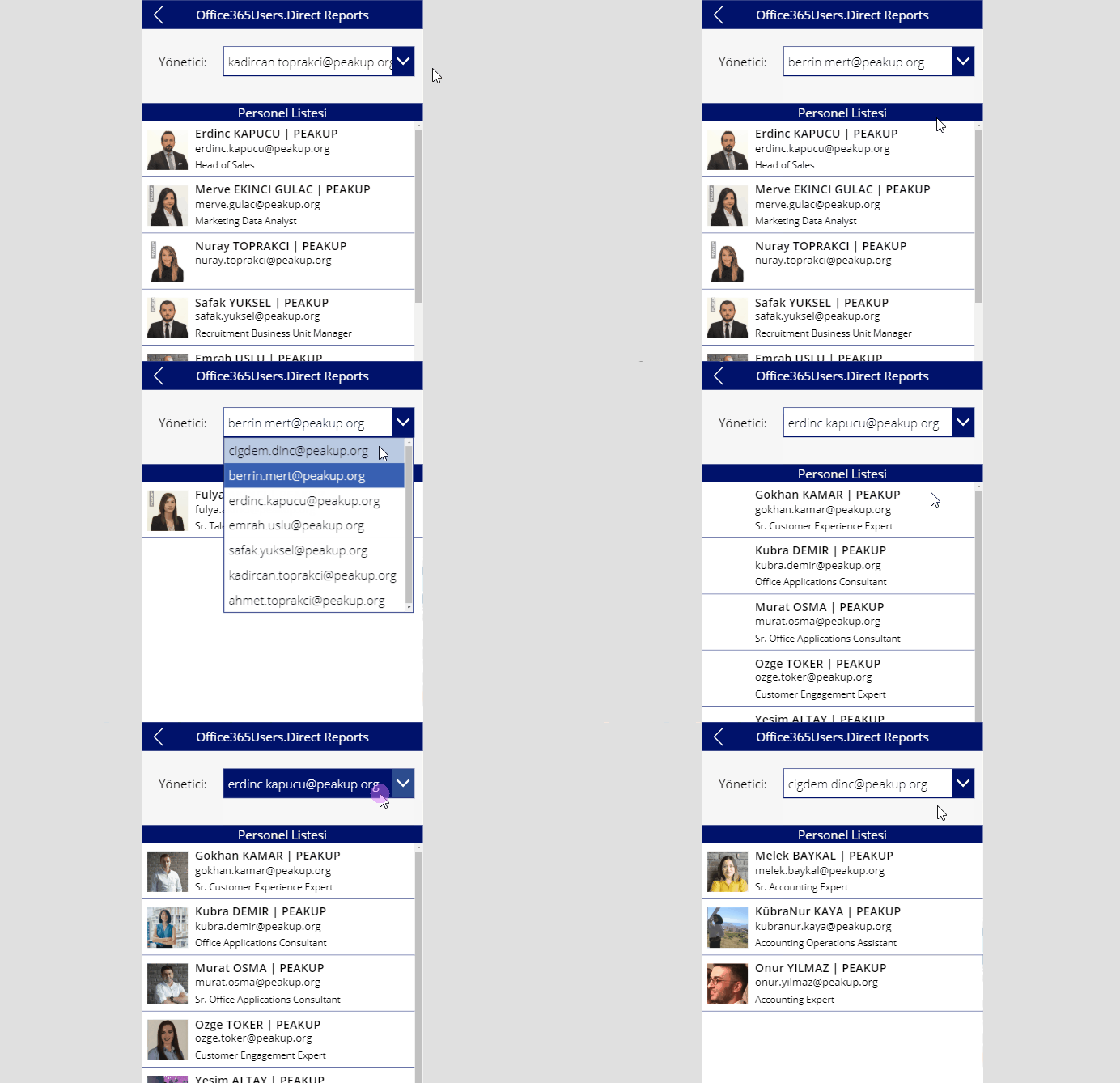
is a data source that enables you to import data to Power Apps. You can access the user profiles in your company by using your Office 365 account with the Office 365 Users connection. There are various titles like your own profile information, other employee’s profile information and manager information. In this article, we will be using the DirectReports feature.

With this feature, you can list the personnel of a manager by clicking their names like shown in the GIF below.

Offıce 365 Kullanıcıları için Raporlar

Add Office 365 Users Connection to the Mobile App

Go View –> Data Sources –> Add Data Source –> Write Office to the search bar and add the Office365Users connection.

Using the Offıce365Users.DirectReports Feature

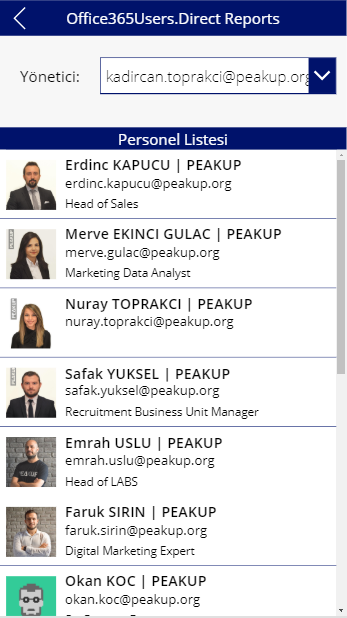
You need to add a Dropdown List and a Gallery item to your own application in order to design a screen like below and list the personnel.

*The name of the Dropdown List used in the scree is Dropdown1. The formulas have been written according to this item name.

Offıce365Kullanıcıları.DırectReports Özelliğini Kullanmak

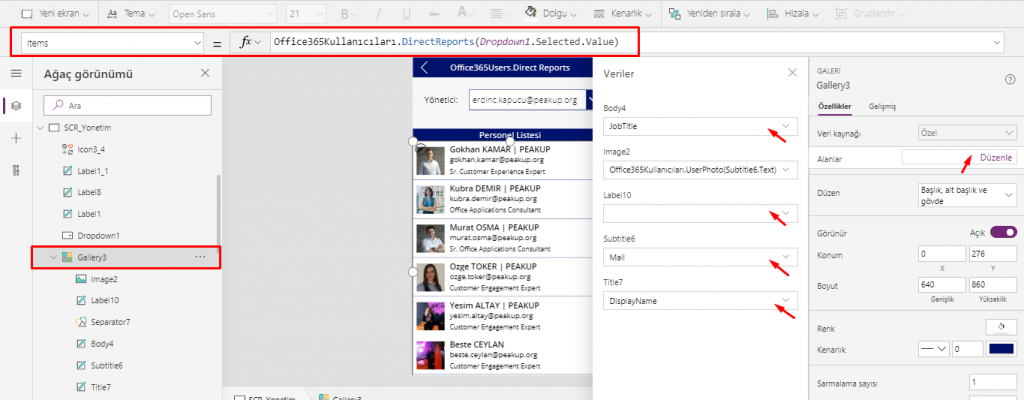
  • This formula is written into the Items property of the gallery item on the screen

Office365Users.DirectReports(Dropdown1.Selected.Value)

  • In order to edit the text in gallery, you can click on the Fields Edit in the window on right and edit one by one on the screen that pops up.
  • To display the user photos, the formula below will be written into the Image property of the Display item.

Office365Users.UserPhoto(Subtitle6.Text)

Subtitle6.Text is the Label that contains the e-mail addresses in the Gallery.

Office365Kullanıcıları.UserPhoto

You can take a look at this link for Office365 connection details.

0365 application apps bilgi fonksiyonları Development Direct Reports DirectReports Excel Excel fonksiyonları Excel functions giriş ekranı kullanıcı bilgileri mobil uygulama mobile mobile app mobile application mobile apps O365 Office365 Office365 DirectReports Office365 kullanıcıları Office365 Profile Office365 User Profile Office365 users Office365Users.DirectReports Office365Users.SearchUser Office365Users.User Profile power power apps fonksiyonları power apps functions power apps user functions Power Platform powerapps powerapps connection powerapps connectors powerapps eğitimi powerapps fonksiyonları PowerApps for Office365 powerapps functions powerapps user functions search user SearchUser user fonksiyonu user function user info User Profile UserProfile

Recent Posts

  • PEAKUP Becomes the First and Only Microsoft Frontier Partner in Türkiye
  • EA Volume Discounts Are Ending: A New Era in Microsoft Licensing Strategy
  • A Powerful Start to FY26: Ready for the Future with Our LNCH Event
  • We Completed the Business & Human Rights Accelerator Program
  • Climbing Higher on the Turkishtime R&D 500 List

Recent Comments

No comments to show.

CONTACT

İSTANBUL : Merkez Mh. Ayazma Cd.No 37 Kağıthane
LONDON : 3rd Floor, 45 Albemarle Street, Mayfair, London, W1S 4JL, United Kingdom
DUBAI : 09-113, 9th Floor Offices 4, One Central Dubai World Trade Centre

TR: +90 212 266 03 65
UK : +44 20 8132 9905
UAE : +971 50 7780365
info@peakup.org
Facebook Youtube Linkedin Instagram Medium Spotify

CORPORATE

ABOUT US
OUR VALUES
PRIVACY & POLICY
PRESS KIT
LIFE
SUSTAINABILITY

PRODUCTS & SERVICES

LICENSING AND CLOUD SOLUTIONS
BUSINESS INTELLIGENCE AND AUTOMATION APPLICATIONS
ARTIFICIAL INTELLIGENCE SOLUTIONS
IT RECRUITMENT SERVICES
EMAIL SIGNATURE MANAGEMENT
DIGITAL WORKPLACE SOLUTIONS
PASSWORD MANAGEMENT SOLUTIONS

POPULAR POSTS

PEAKUP Becomes the First and Only Microsoft Frontier Partner in Türkiye

EA Volume Discounts Are Ending: A New Era in Microsoft Licensing Strategy

A Powerful Start to FY26: Ready for the Future with Our LNCH Event

We Completed the Business & Human Rights Accelerator Program

Copyright All Rights Reserved © 2026