





































Paginated reports, long the standard report format in SQL Server Reporting Services, are now available in the Power BI service. These reports can be printed or shared. They’re called “paginated” because they’re formatted to fit well on a page. They display all the data in a table, even if the table spans multiple pages. They’re sometimes called “pixel perfect” because you can control their report page layout exactly.
Well, let’s create paginated report page!
Open your browser and navigate to https://app.powerbi.com/. Click to Download icon than click to Paginated Report Builder.
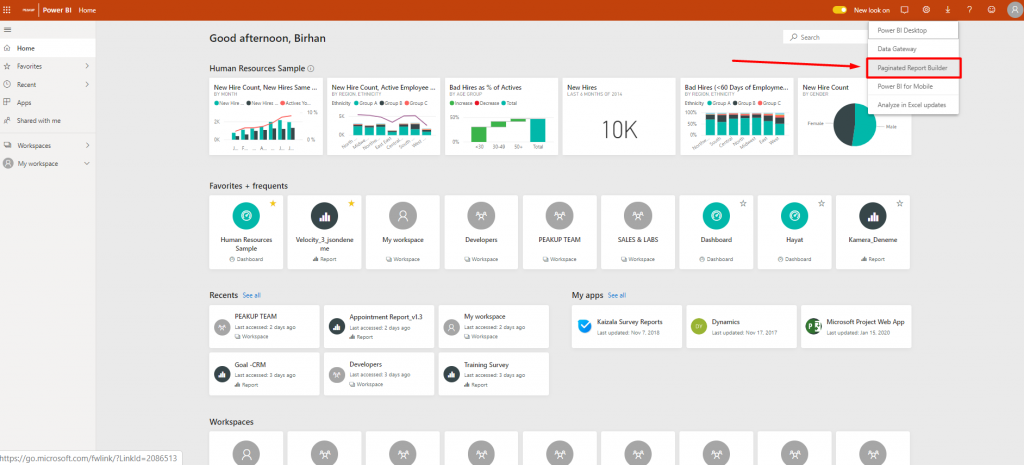
It will redirect you to Microsoft’s Download Center. You can download the .exe file by choosing the language.
Basic wizards are provided to enable you to create faster reports when you open Report Builder. If there is matching report layouts that is similar to what you want to design, you can select it and continue. In this article, I will proceed with an empty report.
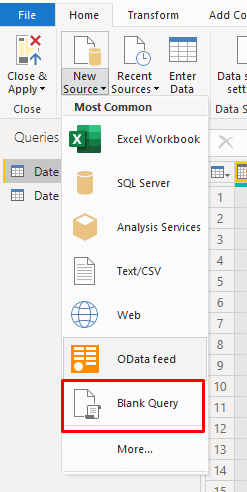
To design a report with Report Builder, first, you should connect to a data source and access data sets from this source. Then, right-click the “Data Sources” in the files area on the left and click on “Add Data Source”. We will start by giving a name to the resource, we will use it in the window that opens. This name is important for us to distinguish this data source more easily. Then, we select the source we will connect to from the list. When we look at the list, we can see that we are facing a much more limited list than Power BI. Since, our sources are on Azure SQL, we select Azure SQL from the drop-down list.
After selecting the connection, it is time to configure the connection settings. Press “Build” and enter the relevant connection information. This information includes server, username & password, and related database information. Do not forget to test it after entering all the information.

After adding the “Data Source”, we will create the related dataset that you will use in the report. Right-click on “Dataset” and select “Add Dataset”. Another window pops up. In this new window, first, we enter the name of the dataset; then, we select the data source we created as “Data Source”. Just down below (Fig.5) , we write a query for this dataset on the query screen. While writing this query, the most important point is to create a paginated report and to specify the parameters with a “where” clause while writing the requested ones in the query field.
By specifying the parameter, we can paginate according to this parameter.
At this last stage, we will give the report page a look we want. You can choose what you want to add to this page from the Insert tab at the Top menu. You can add tables, graphics, maps, text boxes, gauges and images as you wish. The most used ones are the tables and the text boxes. Having a logo of your company on the report page will always provide a good corporate identity. I prefer to use “table” in this article.
After adding the table, column headings are determined. Hence, when you hover over a cell down below, “table indicator” appears at the top right corner of the cell. You can choose which column to show here. If you want to add rows or columns to the table, you can right click on the fields on the left and right top of the table and click insert. By the way, number of rows is automatically determined by the data that is provided.
You can change the properties of each component on the page such as text color, background, position, border from the “Properties” on the right.
First, we add a text box to see the related order number on each page. We enter “sales order” to the input TextBox and right click to select “create placeholder” option. The “create placeholder” command allows us to show a metric that varies on each page. Placeholder window pops up to determine the parameter. We will continue from the “Value” section under the “General” section. To set “Value” as metric, click the “fx” next to it. In the pop-up window, select “Parameters” under “Category” to be able to select “SalesOrderNumber” under “Values”. Close the window by clicking “OK”.
After editing the design of the report, we run it by clicking “Run”. When the system runs, the builder expects a value from the parameter we created earlier to show the report page. We enter a value for the related parameter, and we get a page depending on the parameter we have entered. If there are parts you want to fix, you can go back to the design by clicking the “Design”.
After that, you can export the desired pages in .pdf format and/or print them.
See you later…

Good game well played.

Raspberry Pi (Rpi) 3 has built-in wireless adapter and it can be used as a router. In this guide, Rpi will be connected to your Local Network via Ethernet and it will distribute new IP addresses (DHCP in Raspberry Pi) via WiFi adapter as a HotSpot to any other device that will use Raspberry Pi as router.
This guide expects you to be able to install Raspian OS. When this guide is created, Raspian OS (Linux 9 Stretch) was the up-to-date operating system.
Attention: I suggest you to use keyboard and mouse to follow this guide. You will also need internet connection via ethernet to be able to install some services.
We need two major services for this specific system. “dnsmasq” and “hostapd”. Dnsmasq is required to distribute IP addresses and Hostapd is the service that is used to make Rpi WiFi Adapter to act as hotspot.
Enter the following command in the terminal to install “dnsmasq” and “hostapd”
sudo apt-get -y install hostapd dnsmasq
This command will install both “hostapd” and “dnsmasq” at the same time.
“dnsmasq” service has the features to set DHCP and DNS protocols. Hence, we will set the Rpi to ignore default DHCP settings. Enter the following command to terminal to open “dhcpcd.conf”.
sudo nano /etc/dhcpcd.conf
Add the following line to the bottom of the file:
denyinterfaces wlan0
When it is done, press “Ctrl + X” to save; press “y” and then “Enter” to confirm and complete the saving.
Interfaces will be set to tell how the interafaces will get the corresponding IP Addresses. Enter the following line to the terminal to open the interface file:
sudo nano /etc/network/interfaces
Enter the following settings to the bottom of the file:
#loopback interface settings

auto lo

iface lo inet loopback

#eth0 settings option 1

#Uncomment next two lines to get available IP from local network

#auto eth0

#iface eth0 inet dhcp

#eth0 settings option 2

#Uncomment next five lines to get static IP from local network

auto eth0

iface eth0 inet static

    address 192.168.0.69

    netmask 255.255.255.0

    gateway 192.168.0.254

#Hotspot interface settings

allow-hotplug wlan0

iface wlan0 inet static

    address 192.168.X.1

    netmask 255.255.255.0

    network 192.168.X.0

    broadcast 192.168.X.255
The “X” at the IP addresses is variable (This guide chooses “X” as “42”). Just make sure the addresses here are not same with the local modem’s. Even though, technically, using same IP does not cause any trouble but it would only be confusing for the user (User might not differentiate where a new device gets its IP address.). If Rpi needs static IP uncomment “eth0 settings option 2”, else, “eth0 settings option 1” should be uncommented. If you set an IP address that is already in use by another device, you won’t be able to get an eth0 connection.
When it is done, save and exit the file.
“hostapd” service is used to broadcast specific SSID around so, other devices can connect to the Rpi with a password. To configure the hotspot settings, “hostapd.conf” file will be edited.
sudo nano /etc/hostapd/hostapd.conf
Enter the following settings to the file:
interface=wlan0

hw_mode=g

channel=7

wmm_enabled=1

macaddr_acl=0

auth_algs=1

ignore_broadcast_ssid=0

wpa=2

wpa_key_mgmt=WPA-PSK

wpa_pairwise=TKIP

rsn_pairwise=CCMP

ssid=Rpi-Hotspot

wpa_passphrase=password
When it is done, save and exit the file.
We need to tell “hostapd” service where the “hostapd.conf” file is located. So, enter the following command to the terminal:
sudo nano /etc/default/hostapd
Fine the line (You can use “Ctrl + W” to search for it.):
#DAEMON_CONF=””
And, edit the line as this:
DAEMON_CONF="/etc/hostapd/hostapd.conf"
When it is done, save and exit the file.
“dnsmasq” service has the ability to assign specific IP address range to the clients. First, we will get a backup of “dnsmasq.conf” file because it includes very useful information that might be useful in the future.
Enter the following command to the terminal to save a copy of the original “dnsmasq.conf” file:
sudo mv /etc/dnsmasq.conf /etc/dnsmasq.conf.bak
After the original file is secured, enter the following command to the terminal to edit the freshly created “dnsmasq.conf” file:
sudo nano /etc/dnsmasq.conf
Enter the following lines to the blank “dnsmasq.conf” file:
interface=wlan0

listen-address=192.168.X.1

bind-interfaces

server=8.8.8.8

domain-needed

bogus-priv

dhcp-range=192.168.X.2,192.168.X.100,24h
“X” in the addresses should be same with the what you have set at the “interfaces” settings (In this guide, it is choosen as “42”). Since “192.168.X.1” is reserved for the Rpi, we set the DHCP range from “192.16.X.2” to “192.168.X.100” and they are reserved for 24 hours. Range can be increased or decreased. Other IP addresses (From “192.168.X.101” to “192.168.X.254”) can be used as static IP by the other devices.)
When it is done, save and exit the file.
With the latest versions of Raspbian, “hostapd” service is installed as “masked” or “inactive. To unmask it, enter the following line to the terminal:
sudo systemctl unmask hostapd
At this point, Rpi is ready to be used as an Local Access Point. It is “Local” because we didn’t tell Rpi how to direct the network.
You can connect to the “Rpi-Hotspot” network and confirm that the device gets an IP in the range that we have defined in the “dnsmasq.conf”.
Attention: You need to reboot the system for the Access Point to work but, before the reboot, we can set the “Packet Forwarding” so we can connect to the internet with a client device.
Enter the following command in the terminal:
sudo nano /etc/sysctl.conf
Search (Ctrl + W) for the following line:
#net.ipv4.ip_forward=1
And, uncomment the line (Remove “#”).
When it is done, save and exit the file.
Now, we configure the Network Address Translation (NAT) between Ethernet and WiFi so, packets can be forwarded from Ethernet to WiFi or vice versa.
Enter the following commands to the terminal:
sudo iptables -t nat -A POSTROUTING -o eth0 -j MASQUERADE

sudo iptables -A FORWARD -i eth0 -o wlan0 -m state --state RELATED,ESTABLISHED -j ACCEPT

sudo iptables -A FORWARD -i wlan0 -o eth0 -j ACCEPT
Enter the following command for to the terminal to save the iptables settings to a file:
sudo sh -c "iptables-save > /etc/iptables.ipv4.nat"
You can check the changes by typing:
sudo nano /etc/iptables.ipv4.nat
Then, open up the “rc.local” file to make it restore the settings at every boot:
sudo nano /etc/rc.local
Enter the following line before the “exit0” line:
iptables-restore < /etc/iptables.ipv4.nat
When it is done, save and exit the file.
Enter the following command to reboot Rpi:
sudo reboot
The system is ready to roll. You can now connect to the internet through your Rpi (which also distributes the IP addresses.)
Attention: If the process is successful, when you enter the “ip route” command in the terminal you should get an output that is similar to this:
If you only get “wlan0” output, there are two possibilities: Either the static IP you set is in use by another device or, you did something wrong in the process.
If you get this output, most likely, you set the hotspot correctly. But, if you still can’t get the internet connection on a client, that means, you made a mistake with NAT settings.
References
