

Learn how to set up a local Windows PC as a Personal Desktop Agent (PDA) using Microsoft Copilot Studio’s Computer Use feature. This step-by-step guide explains how AI agents can automate tasks by seeing, clicking, and typing just like humans.
Automate Your Desktop with AI: Getting Started with Copilot Studio Computer Use
Microsoft Copilot Studio’s Computer Use feature enables AI agents to perform tasks by visually interpreting a computer screen—clicking buttons, typing text, and navigating interfaces exactly the way a human would. This opens the door to automating a wide range of workflows that were previously handled manually.
This guide outlines how a local Windows machine can be configured as a Personal Desktop Agent (PDA) for Copilot Studio Computer Use, providing a practical, step-by-step walkthrough of the setup process.
What Is Computer Use?
Computer Use is powered by an AI model known as Computer Using Agents (CUA). Here’s what makes it unique:
- Visual screen interpretation: The agent captures screenshots and analyzes the interface in real time.
- Adaptive navigation: Unlike macro-based automation, it can adapt even when button positions or UI elements change between sessions.
- Natural language instructions: No coding required; tasks can be described in plain language.
- Cross-platform compatibility: Works seamlessly with both web browsers and desktop applications.
The key difference from traditional RPA (Robotic Process Automation) tools is that instead of recording fixed screen coordinates, Computer Use re-analyzes the screen at every step. This makes it significantly more resilient to UI changes and software updates.
A Note on Performance
This flexibility does come with a trade-off. Because a screenshot is captured and analyzed at each step, Computer Use can be slower than conventional RPA solutions. For processes where speed is critical and tasks need to be completed within seconds, this latency should be considered during planning.
Computer Use is best suited for scenarios where accuracy and adaptability matter more than raw execution speed.
When Should You Use Computer Use?
Computer Use delivers the most value in situations where API integrations do not exist or where building custom integrations into legacy systems would be prohibitively expensive. By seeing the screen and acting like a user, AI agents can automate a broad range of manual workflows.
Key Use Cases
- Extracting and reporting data from legacy applications
- Auto-filling web forms
- Transferring data manually between multiple systems
- Executing repetitive operations in CRM and ERP platforms
- Conducting research based on defined criteria and generating summary reports
- Taking action in different systems based on email or document content
Real-world example: An AI agent deployed at an airline company could visit specific travel agency websites, collect fare data, and automatically compare those prices against internal systems before compiling the results into a structured report. Similarly, many applications without native API support can now be incorporated into automated workflows through Computer Use.
Setup: How to Configure Your Local Machine as a Personal Desktop Agent
To use a local Windows machine within Copilot Studio, begin by navigating to the Tools section on the dashboard of either a newly created or an existing agent. From there, activate the Computer Use feature.
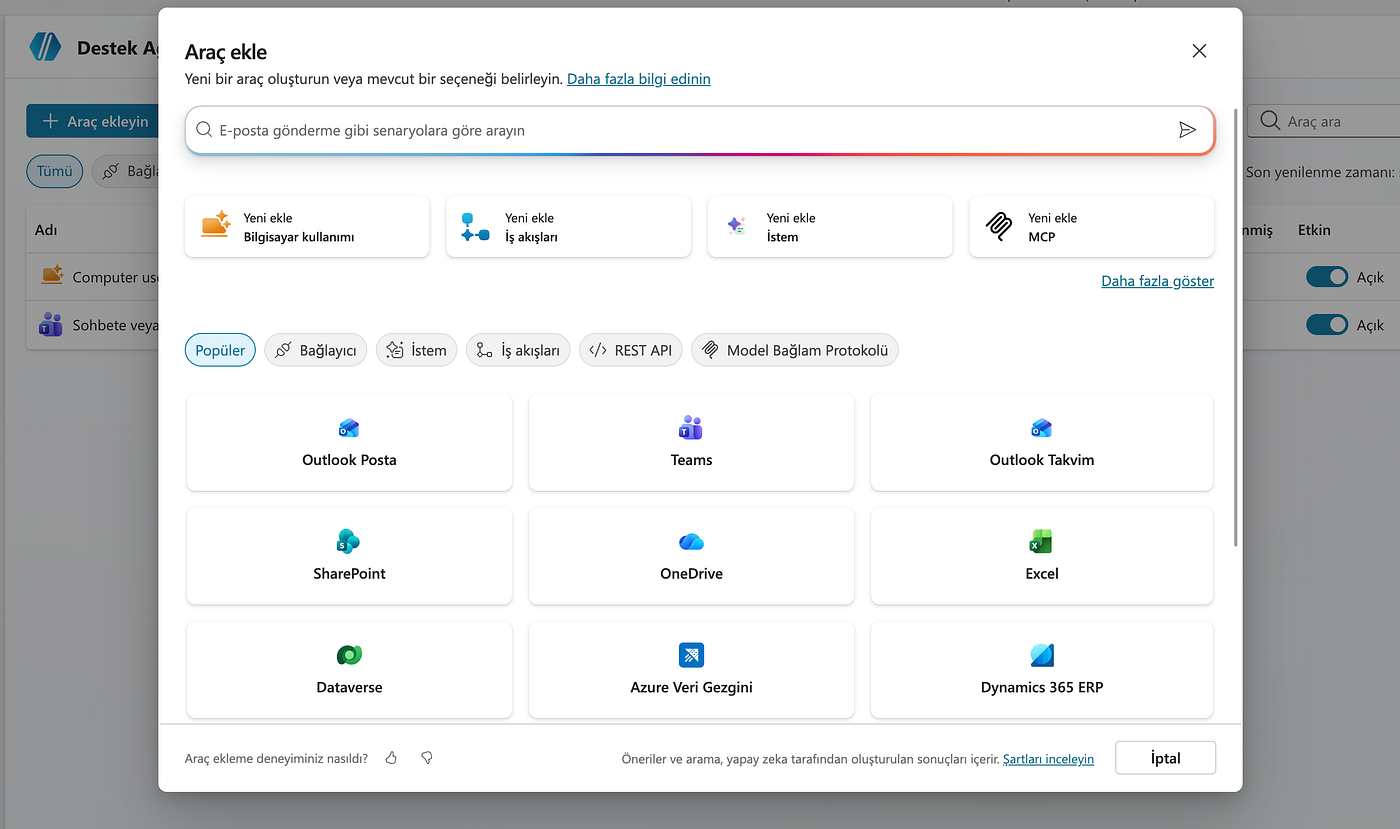
Once Computer Use has been enabled, the configuration details page becomes available. This is where the behavior of the AI agent is defined. The page includes the following settings:
- Instructions field: Define exactly what Computer Use should do by describing the task in natural language.
- Name and description: Label the configuration for easy identification.
- Model selection: Choose the AI model that will power the Computer Use agent.
- Input parameters: Specify any required input variables the agent needs to complete its task.
After these details have been populated, use the machine selection dropdown (shown in the screenshot below) to specify which device the agent should connect to and operate on.
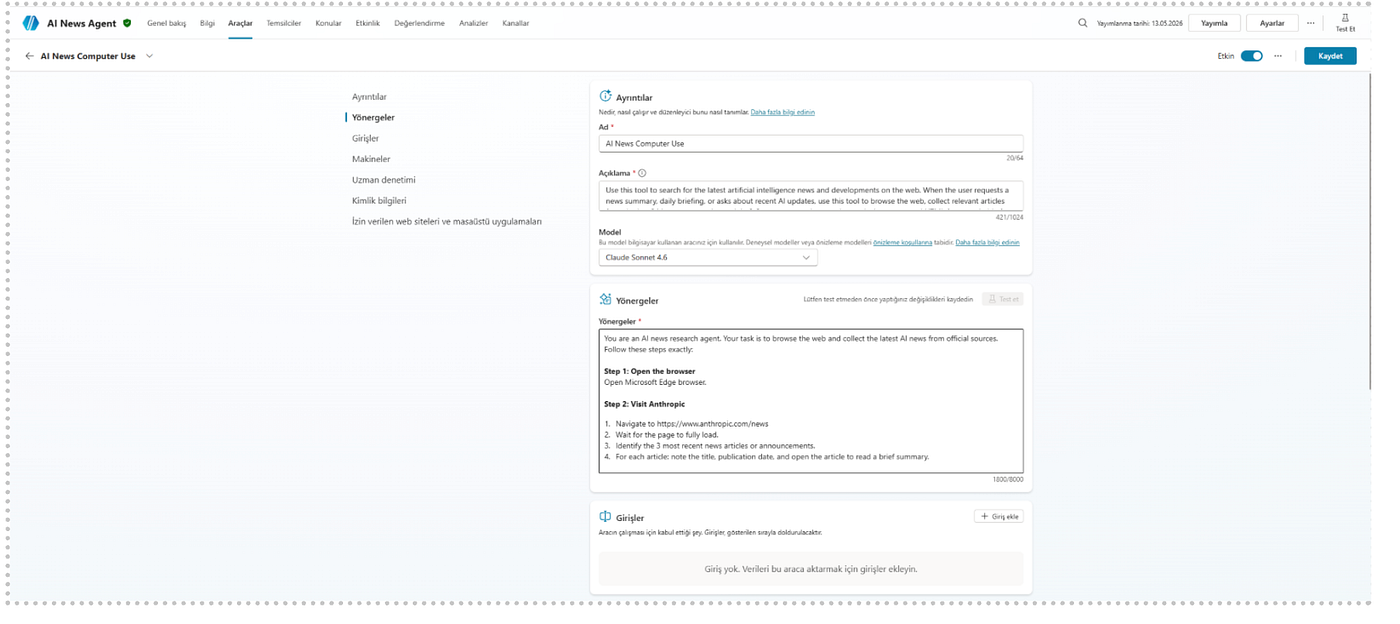
To maximize the effectiveness of Computer Use, instructions should be written in a clear, sequential format. Explicit step-by-step guidance helps ensure the agent remains focused on the intended task, reducing the likelihood of unexpected actions or incorrect assumptions. Well-structured instructions are one of the most important factors in achieving accurate and reliable results.
On this page, Microsoft also provides a hosted machine option—a ready-to-use environment managed by Microsoft. However, for scenarios requiring operation on an organization’s own Windows device, a custom machine can be added instead.
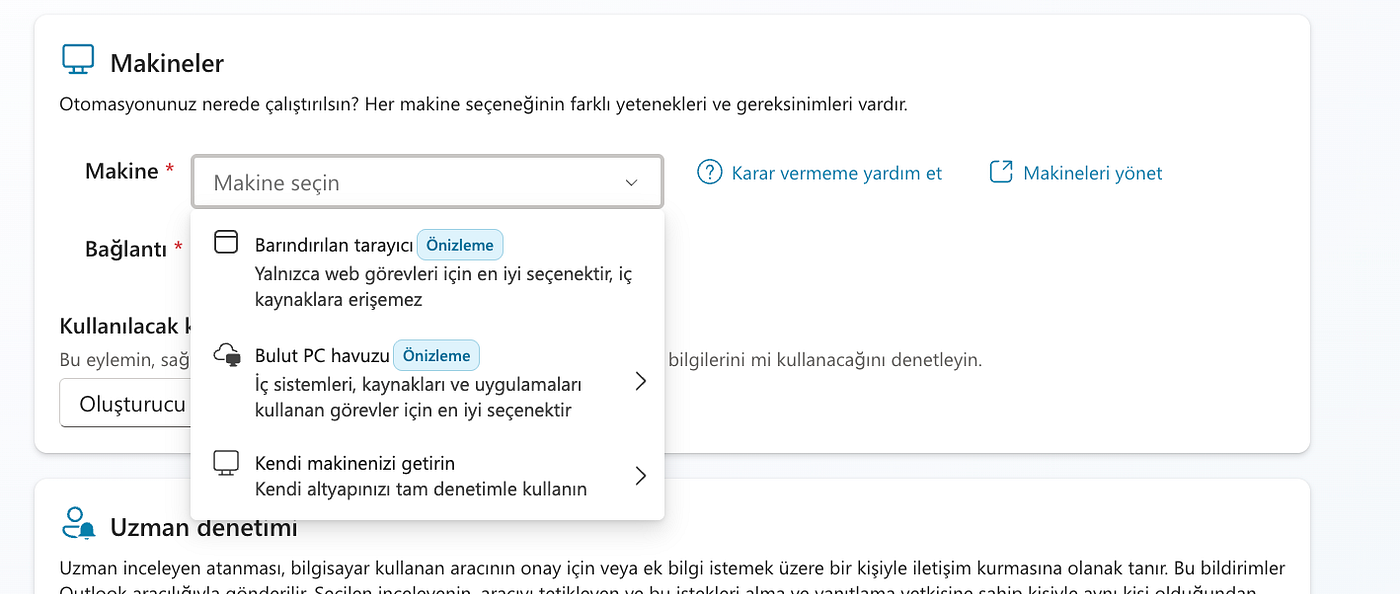
When adding a new machine, the system automatically redirects to Power Automate. Before proceeding, Power Automate Desktop must be downloaded and installed on the target Windows machine.
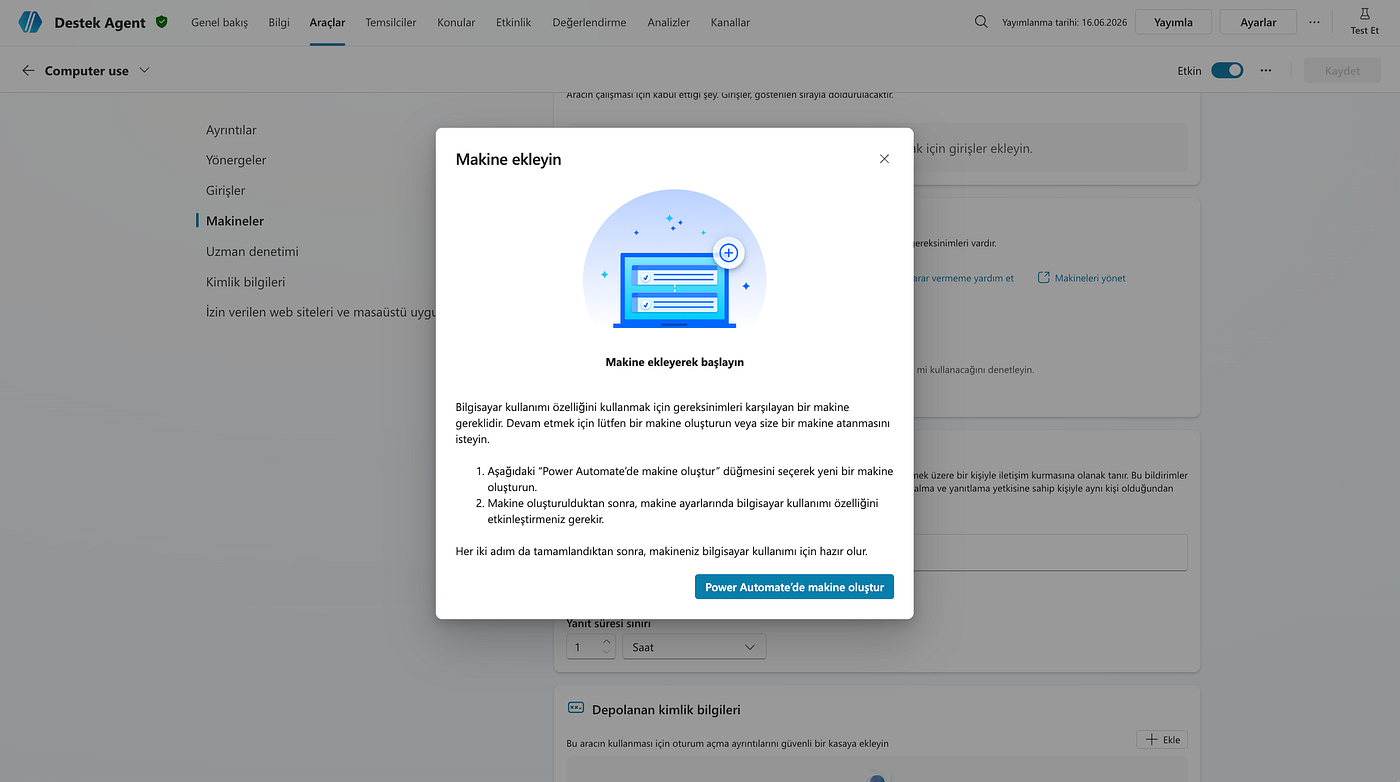
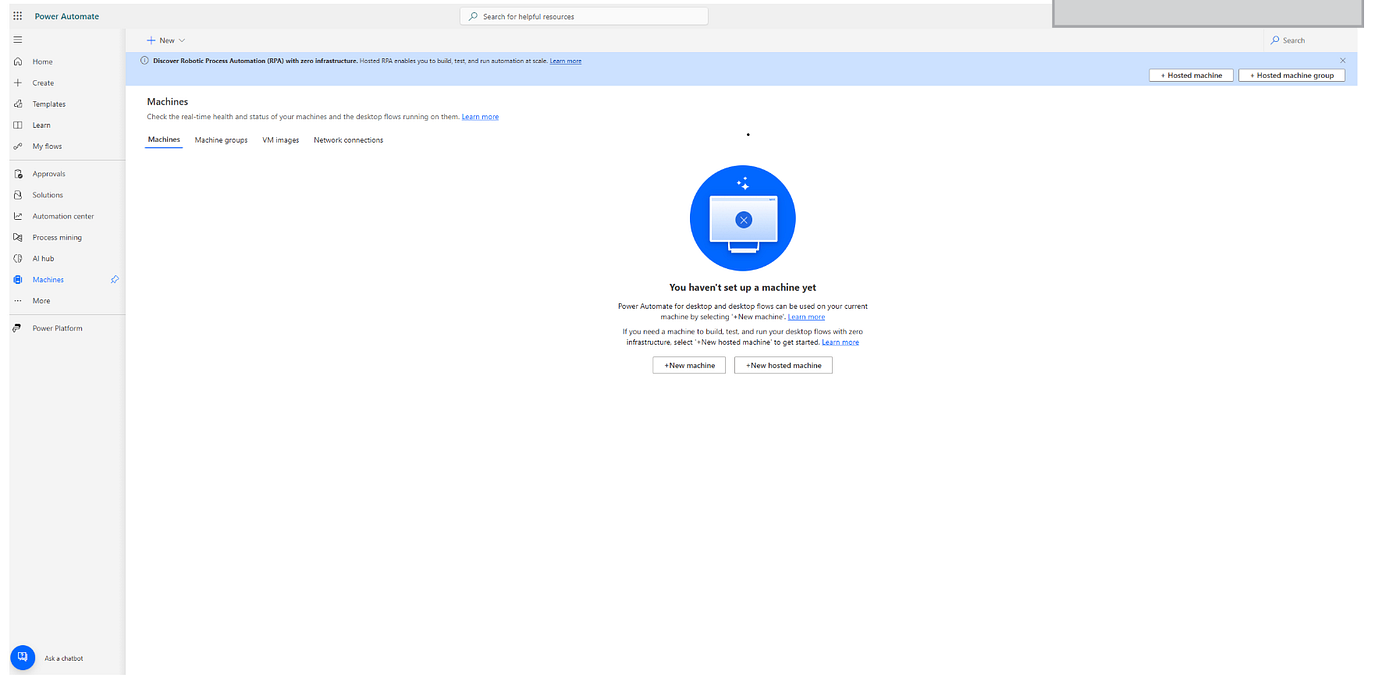
Once the installation is complete, open the Power Automate Machine Runtime application and register the machine. After registration is finished, the device will appear under the Machines section within Power Automate.
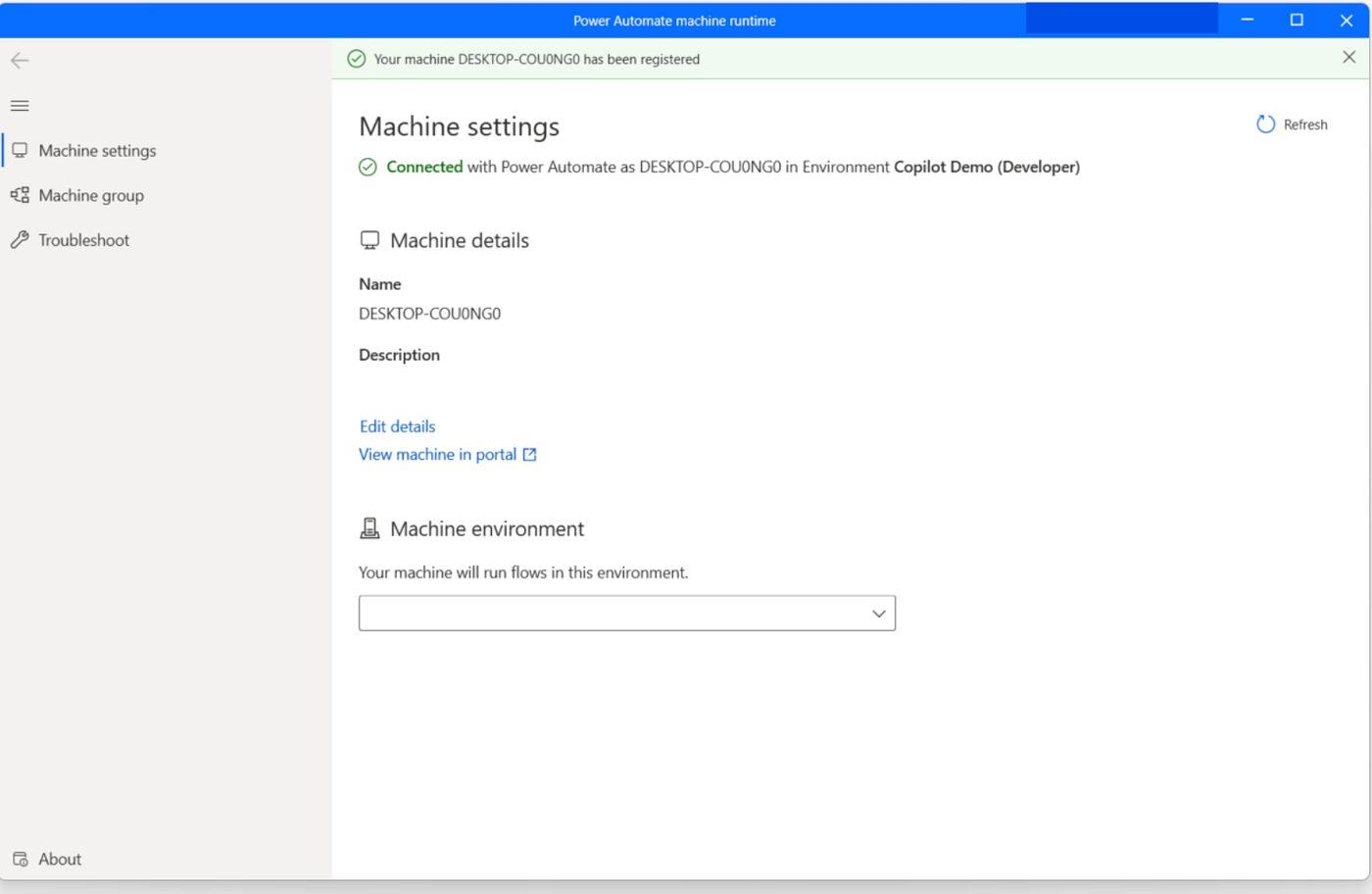
At this stage, the environment in which the machine will operate must also be selected.
After completing these steps, the machine is fully registered and ready to be used with the Computer Use feature inside Copilot Studio. The registered device will become available directly within the Computer Use section of the Copilot Studio agent.
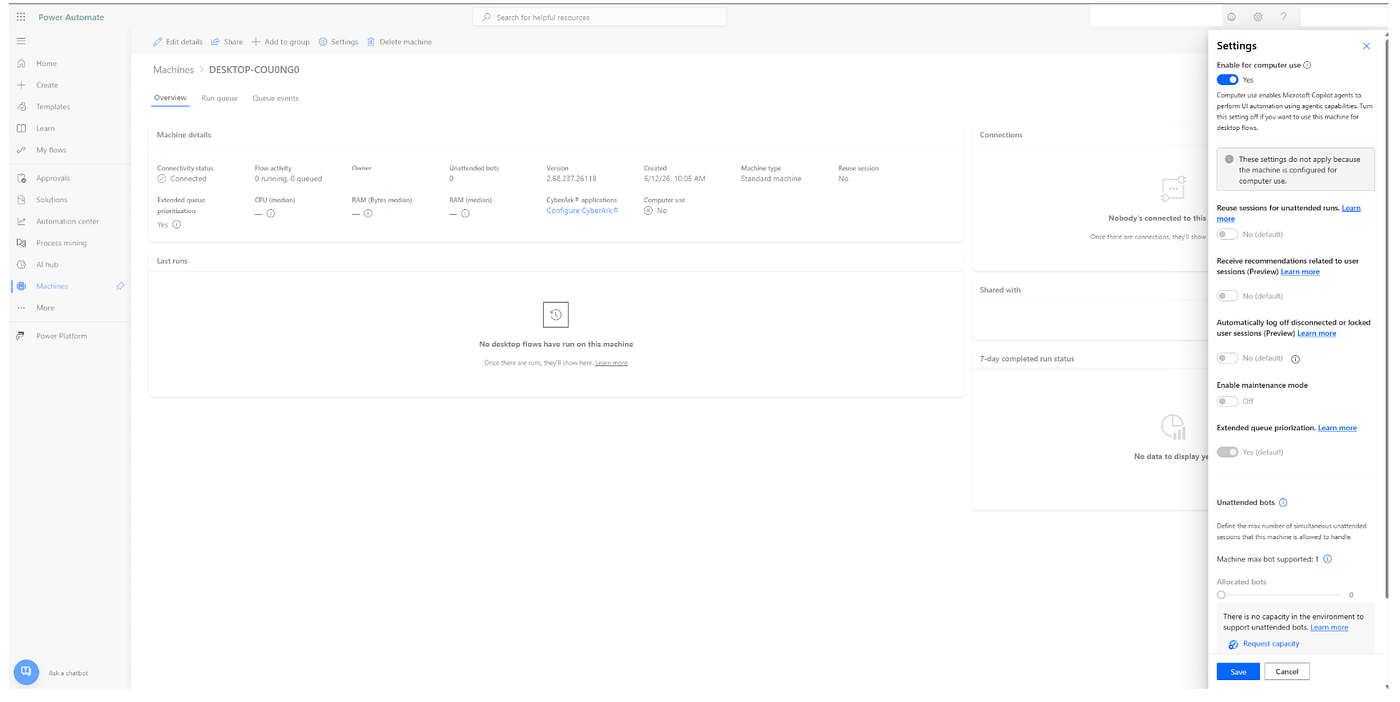
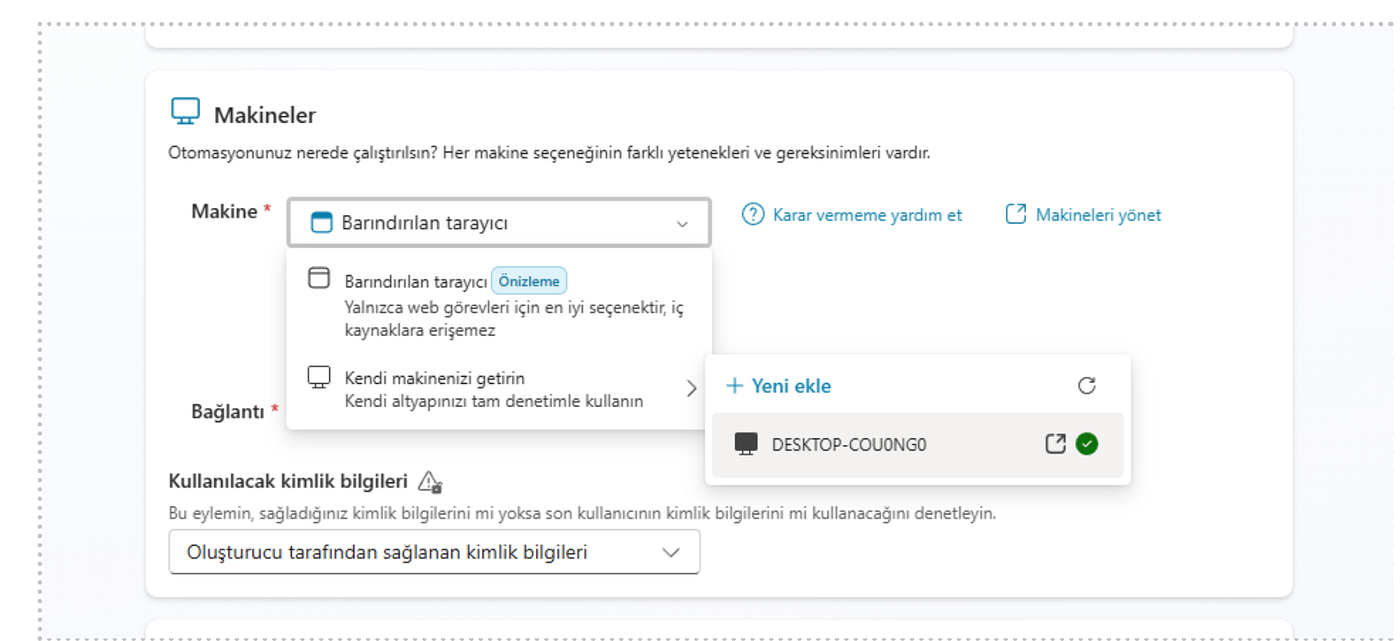
Setting Up the Connection in Copilot Studio
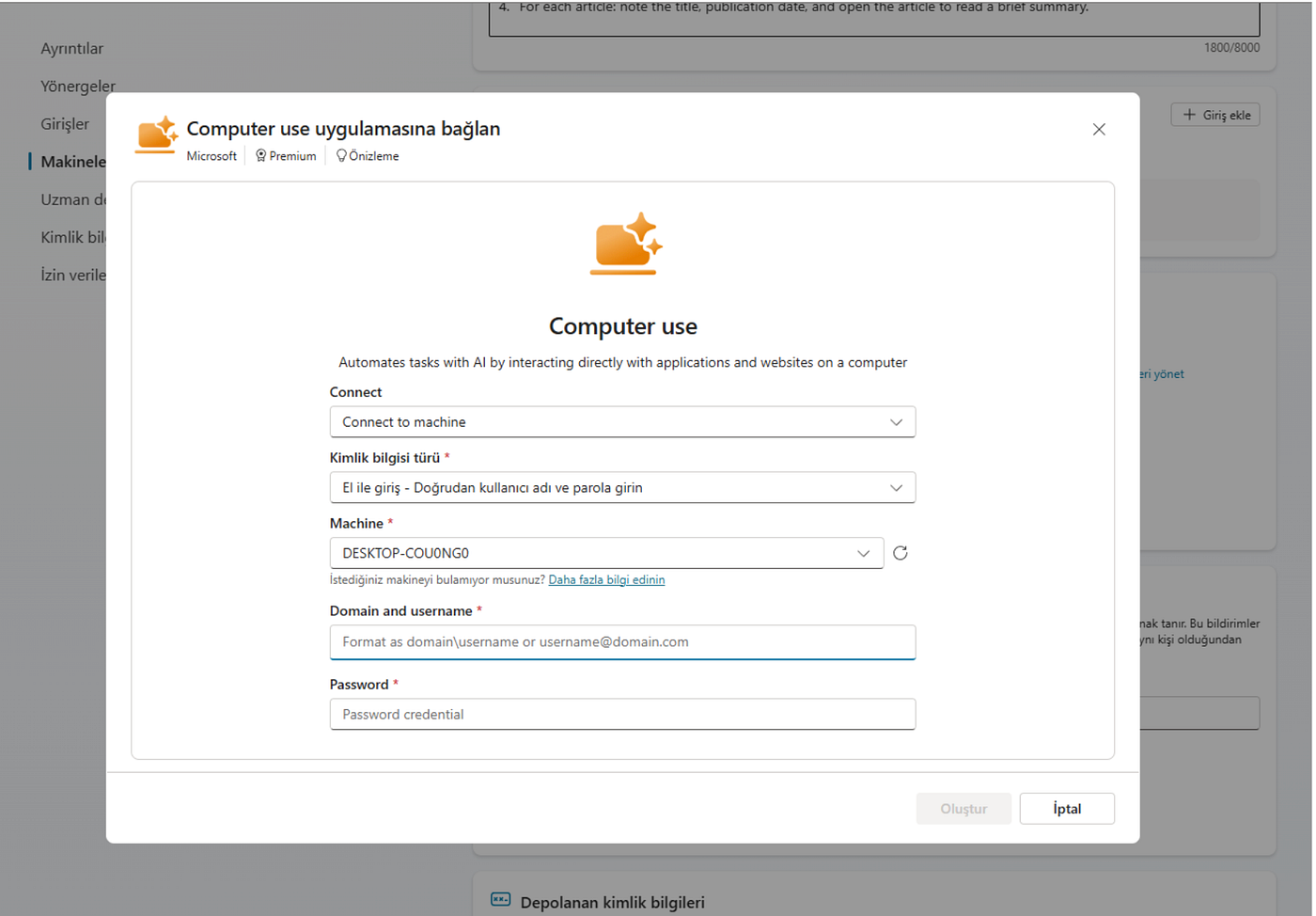
Once machine configuration is complete, return to Copilot Studio, select the registered device, and start the connection process.
Because a local machine is being used, a prompt will appear requesting Domain/Username and Password credentials. Once authentication is successfully completed, the machine becomes available for agent execution.
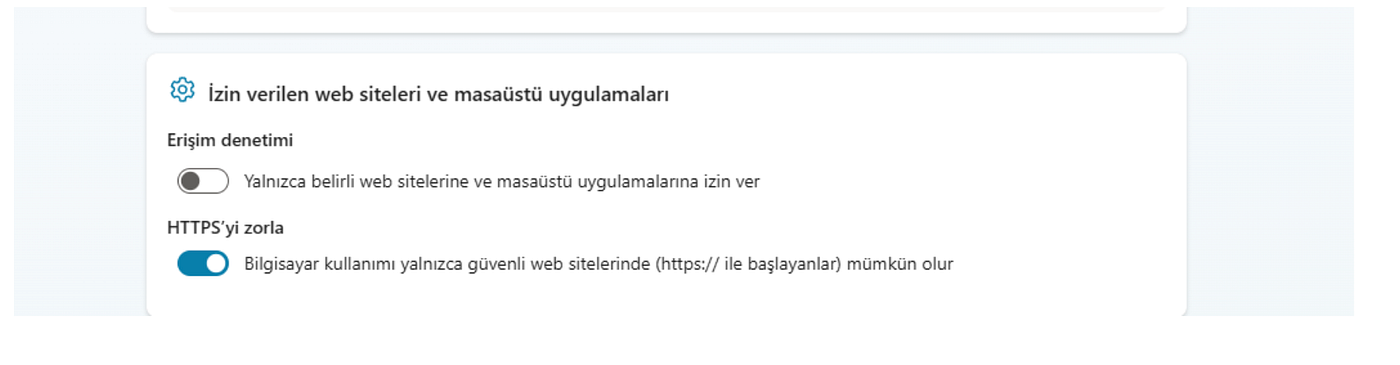
At the bottom of the page, additional settings allow restrictions to be applied to specific URLs or trusted connections.
In the example shown, the URL field is left empty to support general-purpose research scenarios. However, the HTTPS requirement remains enabled to maintain secure connectivity.
At this point, a fully functional AI agent infrastructure is ready for use on a local machine. The configured device can be associated with any Copilot Studio agent and leveraged across a wide variety of automation scenarios.
Common Issues and Resolutions
Power Automate Browser Extension Error
Error Message:
There was an error communicating with the Microsoft Power Automate browser extension. Please make sure the extension is installed and enabled.
Root Cause:
The Power Automate browser extension is either not installed or has been disabled within the browser.
Solution:
If Chrome is being used, install the Power Automate extension from the Chrome Web Store.
After installation, fully close and relaunch the browser.
Chrome / msedgewebview2 Permission Error
Error Messages:
Application not allowed: chrome isn’t currently on the allowed list of applications.
Application not allowed: msedgewebview2 isn’t currently on the allowed list of applications.
Root Cause:
Access Control restrictions are enabled on the Computer Use tool, preventing certain applications from being accessed.
Solution:
Navigate to the relevant Computer Use tool within Copilot Studio and open the Allowed Websites and Desktop Applications section. Add the affected applications to the allow list or update the Access Control configuration as required.
Best Practices & Key Considerations for Computer Use
While Computer Use offers more flexibility than traditional RPA solutions, several considerations should be kept in mind to ensure consistent and reliable results:
- Keep the session active. The machine should not lock its screen or terminate the user session while the agent is running.
- Manage pop-ups and notifications. Unexpected alerts can interrupt the agent’s workflow.
- Consider processing time and cost. Workflows containing large numbers of steps may increase both execution time and usage costs.
- Maintain a stable internet connection. Connectivity issues can directly impact agent performance.
- Test thoroughly before deployment. Critical business processes should be validated in a non-production environment before going live.
- Prioritize API-based integrations whenever possible. If a reliable API integration exists, it should generally be the preferred approach. Computer Use is particularly valuable when APIs are unavailable or when traditional integration projects are impractical.
The most effective way to think about Computer Use is as a tool optimized for flexibility and ease of implementation rather than raw speed—particularly when working with legacy systems or repetitive interface-driven processes.
What Your Agent Can Do Once Setup Is Complete
After setup is completed, a Copilot Studio agent can:
- Navigate applications autonomously by visually interpreting the screen
- Fill out forms and collect data from websites
- Capture and send screenshots back to Copilot Studio for further processing
- Interact with systems that do not provide APIs, as long as they have a user interface
Computer Use significantly expands the range of systems that AI agents can interact with. Rather than being limited to applications that expose APIs, virtually any software with a graphical user interface becomes a potential automation target. This enables organizations to revisit processes that may previously have been considered too complex, too fragile, or too costly to automate—and rethink what is possible with AI-driven workflows.